Release story March 20, 2026

Respira 5.0 Haven: Every AI Edit Now Has an Undo Button

AI edits your site in seconds. Now every edit creates an automatic rollback point — full builder data, metadata, everything. Browse, diff, and restore from a single admin page.

Plugin 5.0.0 Breaking change MCP unchanged (4.0.8)
Full-fidelity snapshots
Every edit
Restore time
One click
Builder data captured
Elementor, Divi, Bricks
WebMCP write tools
Now protected

Problem 1

Menu links break after approval

Shipped fix

Merge mode preserves original URLs

Problem 2

AI edits are invisible — no history, no visibility

Shipped fix

Changes page with full version history and restore

Problem 3

MCP write tools have no safety net

Shipped fix

Every write operation auto-snapshots before mutating

The story

The more you trust AI with your site, the more you need an undo button.

The more people use Respira, the more they trust it with live pages. They stop using duplicates. They tell their AI “just edit the page directly” because it is faster and the results are good. We wanted to make sure that confidence is never punished.

So we asked: what if the AI rewrites a hero section and the tone is not quite right? What if it restructures a landing page and you prefer the original layout? What if a client sees a work-in-progress before you have reviewed it? In every case, you should be able to go back instantly — with everything intact, including builder data, SEO fields, and custom meta that WordPress revisions do not capture.

We also looked at the approval workflow. When you do use duplicates for review before publishing, approving should never break anything. The original URL, the menu links, the internal references — all of it should stay exactly where it was.

5.0 is the safety release. Every Respira edit now creates a full-fidelity snapshot automatically — post content, builder data, metadata, all of it. There is a new Changes page to browse everything AI has touched. And the approval flow now merges into the original post instead of swapping, so your links always work.

Scenarios we designed for

AI edits a page and the result is not what you wanted — one click to restore the previous version with full builder data.

You approve a duplicate for a page in your header menu — the original URL and all menu links stay intact.

You are editing live because it is faster — every edit is automatically captured so you can always roll back.

A client sees a half-finished edit — revert immediately from the Changes page without touching the editor.

Every scenario above is handled automatically in 5.0. No extra steps required.

Problem 1 to Fix 1

Approving a page broke every link pointing to it.

The approval flow swapped the duplicate into the original's place and made the original private. Every menu item, internal link, and search engine reference to the original URL stopped working.

  • What the user experienced

    Header navigation broke immediately after approving a page edit through Respira.

  • Why it happened

    Swap mode changed the original post to private status, breaking all references to its URL and post ID.

  • What we shipped

    Merge mode writes the duplicate content into the original post, preserving its ID, URL, and all references.

  • Benefit

    Menu links, internal links, redirects, and search engine URLs all stay valid after approval.

Approval behavior comparison

Same approval, different outcome for your site

Default changed in 5.0
Before (swap mode) Approval result
Homepage (original)

Status: private

Broken
Homepage_duplicate_1842

New URL, new post ID

Live

Menu still points to the original URL. Header link returns 404 or private page.

After (merge mode) Approval result
Homepage (original)

Same URL, same post ID, updated content

Live

What happened to the duplicate

Duplicate content merged into original Cleaned up
Merge mode is now the default for all post types. The original post keeps its ID and URL. Use add_filter('respira_preserve_original_id_on_approve', '__return_false') to restore swap mode.
Problem 2 to Fix 2

AI edits happened silently. No history. No visibility.

Respira has been capturing full-fidelity snapshots of every edit since version 3.3. But that data was only accessible through the MCP API — there was no admin UI to browse, preview, or restore previous states. The safety net was invisible.

  • What users experienced

    No way to see what AI changed, when it changed, or what the post looked like before. Edit history existed but was only accessible via MCP tools.

  • Why it happened

    Snapshots were built as an API-first feature for MCP tools, designed for programmatic access. A corresponding admin UI was not built at the time.

  • What we shipped

    A dedicated Changes page with a post-centric timeline. Every post with Respira activity shows pending duplicates and full version history. Browse, diff, pin, and one-click restore — all from wp-admin.

  • Benefit

    Complete visibility into every AI edit. Pin important versions, purge old ones, preview diffs, and roll back any change without leaving your admin dashboard.

Admin visibility comparison

From invisible snapshots to full version history in wp-admin

New in 5.0
Before 5.0 Snapshots existed, but…
MCP API only

wordpress_list_snapshots, wordpress_get_snapshot

API
Approvals page

Pending duplicates visible, but no version history

Admin

Snapshots were captured silently. No admin page to browse or restore them.

After 5.0 Changes page
Post-centric timeline

Pending duplicates + version history per post, in one view

Admin
Preview diff + one-click restore

See what changed, revert with automatic safety version

Admin
Storage management

Total size, purge old, pin important, bulk delete

Admin
The Changes page appears under the Respira menu in wp-admin. All existing snapshots from 3.3+ are immediately visible after updating to 5.0.

Problem 3 to Fix 3

Live edits had no undo button.

Users who told their AI to “publish directly” instead of using the duplicate workflow had no way to roll back. WordPress native revisions only capture title, content, and excerpt — not builder data, SEO fields, or custom meta.

  • What users experienced

    After a live edit went wrong, there was no way to get back to the previous state with full builder data.

  • Why it happened

    WordPress revisions only store core post fields. Elementor, Divi, and Bricks data lives in post_meta, which revisions do not capture.

  • What we shipped

    Every Respira force edit now creates both a WP revision (for the editor panel) and a Respira version (for full-fidelity restore including builder data).

  • Benefit

    Two layers of undo: WP-native revisions for the familiar editor panel, and Respira versions for everything else.

Rollback coverage comparison

What WordPress revisions capture vs what Respira snapshots capture

Hybrid approach
WP Revisions Core fields only
post_title Captured
post_content Captured
post_excerpt Captured

Builder data (Elementor, Divi, Bricks), SEO fields, and custom meta are not stored in WP revisions.

Respira Snapshots Full fidelity
All core post fields Captured
Builder payload (Elementor/Divi/Bricks) Captured
Allowlisted post_meta Captured
Compressed + hashed for fast diff Captured
Both are created automatically on every Respira edit. WP revisions give you the familiar editor panel. Respira snapshots give you full-fidelity restore including builder data and metadata.

Closing

The safety net was always there. Now you can see it.

Respira has been capturing snapshots since version 3.3. Every edit, every restore, every approval — the full post state was being saved, compressed, and hashed for fast comparison. But users did not know that. The safety net was invisible.

Version 5.0 does not change the underlying snapshot system. It makes it visible. You can now browse every version from the Changes page in wp-admin, see what changed between any two states, and restore with one click. And the new merge mode means you can use the approval workflow without worrying about broken links.

This release started with one user's broken menu link. It ended with the undo button that should have been there from the start.

See it in action

A full Divi 5 page from a single prompt

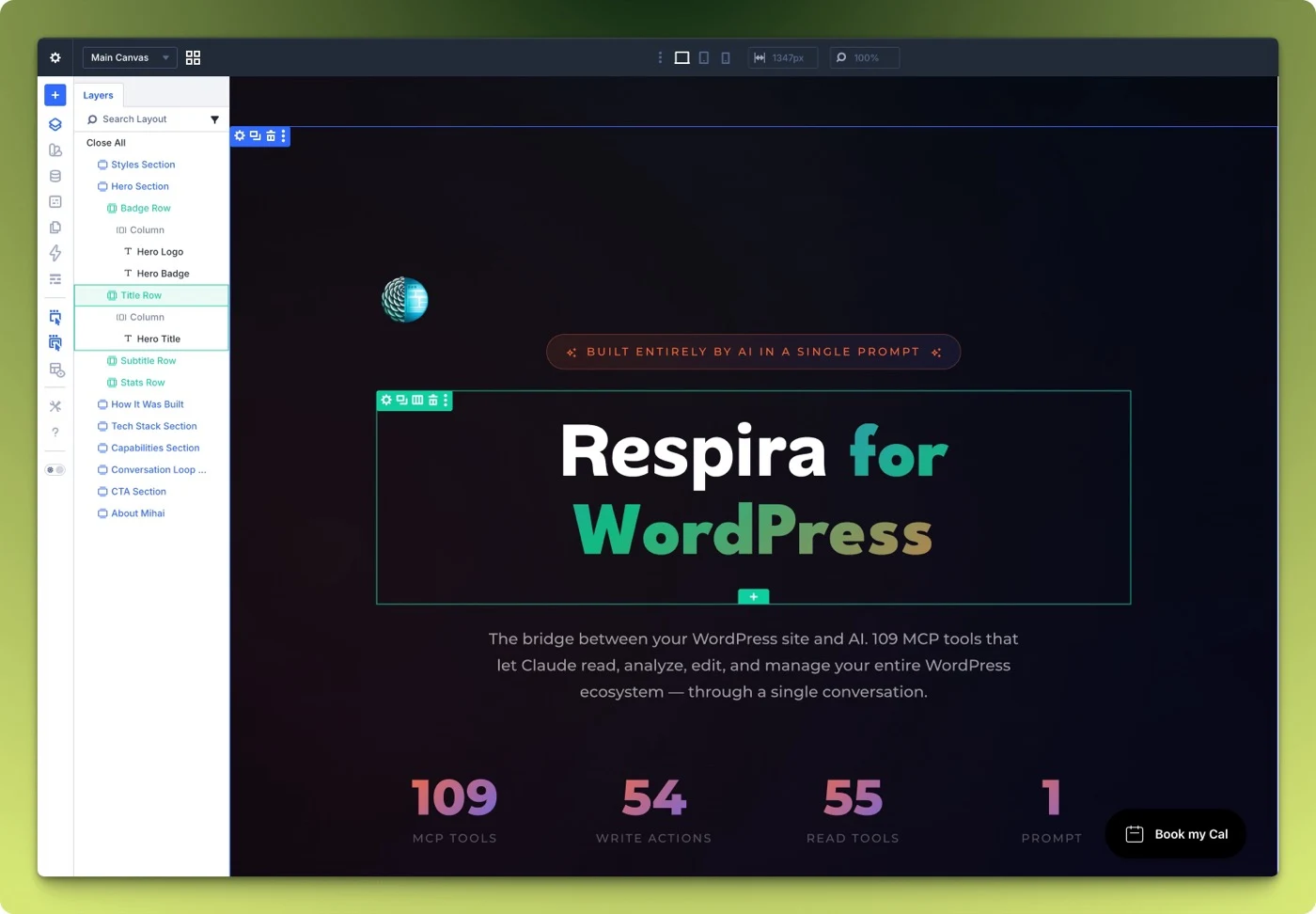
This native Divi 5 page was built entirely through Respira 5.0 and WebMCP on Chrome 146+ with the Claude browser extension. One prompt. One conversation. Every section, every row, every module — placed directly in the Divi visual builder.

No copy-paste. No manual layout. The AI reads your site context, picks the right builder, and writes content directly into the visual editor while you watch.

View live demo
Divi 5 visual builder showing a complete page built from a single AI prompt through Respira and WebMCP.

What shipped in 5.0

Three features, one behavior change, and a new admin page.

The Changes page is the headline, but the behavior change matters more for existing users. Merge mode is now the default for all post types. If you use the approval workflow, test on staging before updating production.

Feature 1

One page for everything AI changed

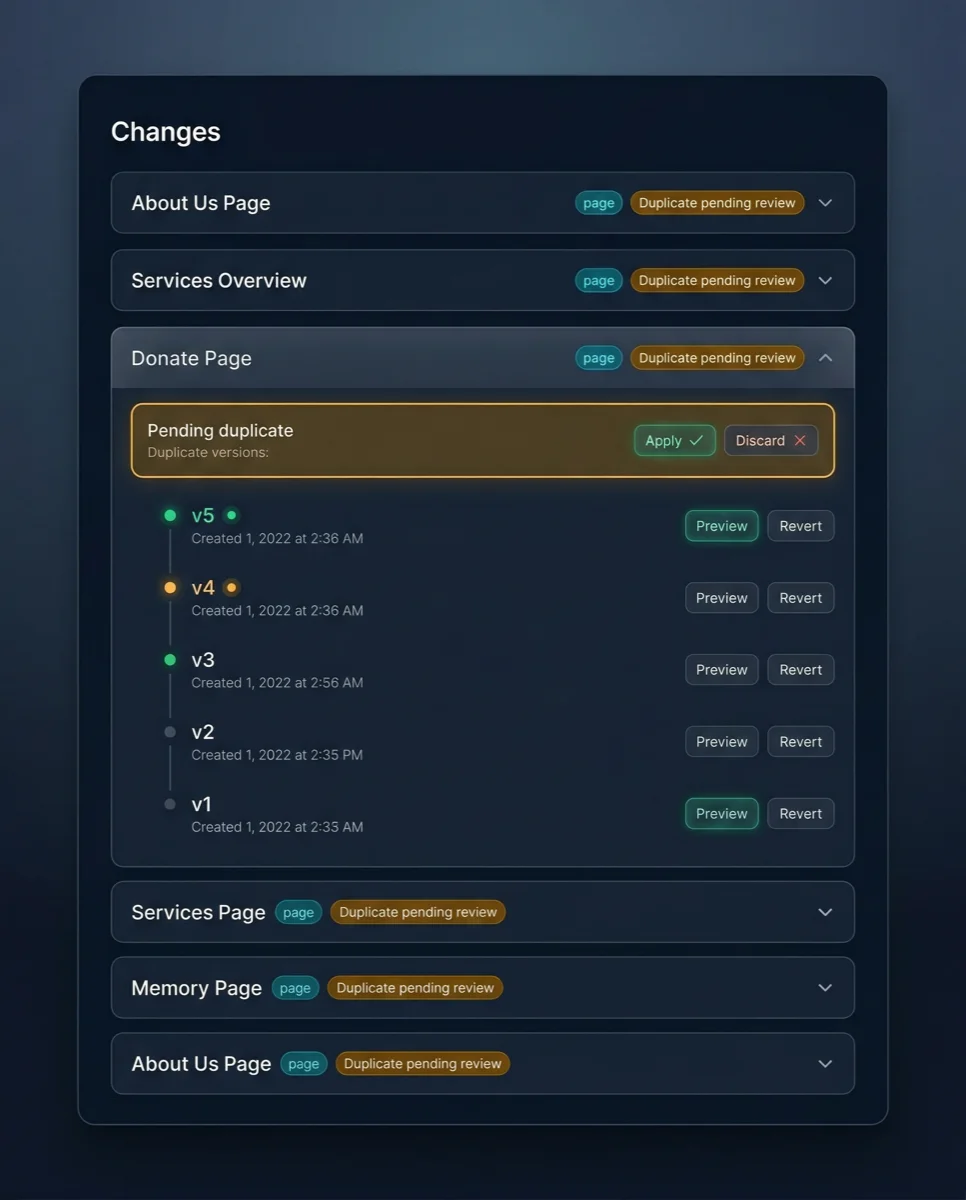
The new Changes page shows everything AI has done to your site in one place. Every post with Respira activity gets a timeline: pending duplicates waiting for review at the top, full version history below. Browse, diff, and restore with one click. Full builder data included — Elementor, Divi, Bricks, everything.

  • Browse all versions across all posts
  • Preview diff against current state
  • One-click restore with automatic safety version
Respira 5.0 Haven Changes page showing pending duplicates and version history with diff preview.

Feature 2

Storage under your control

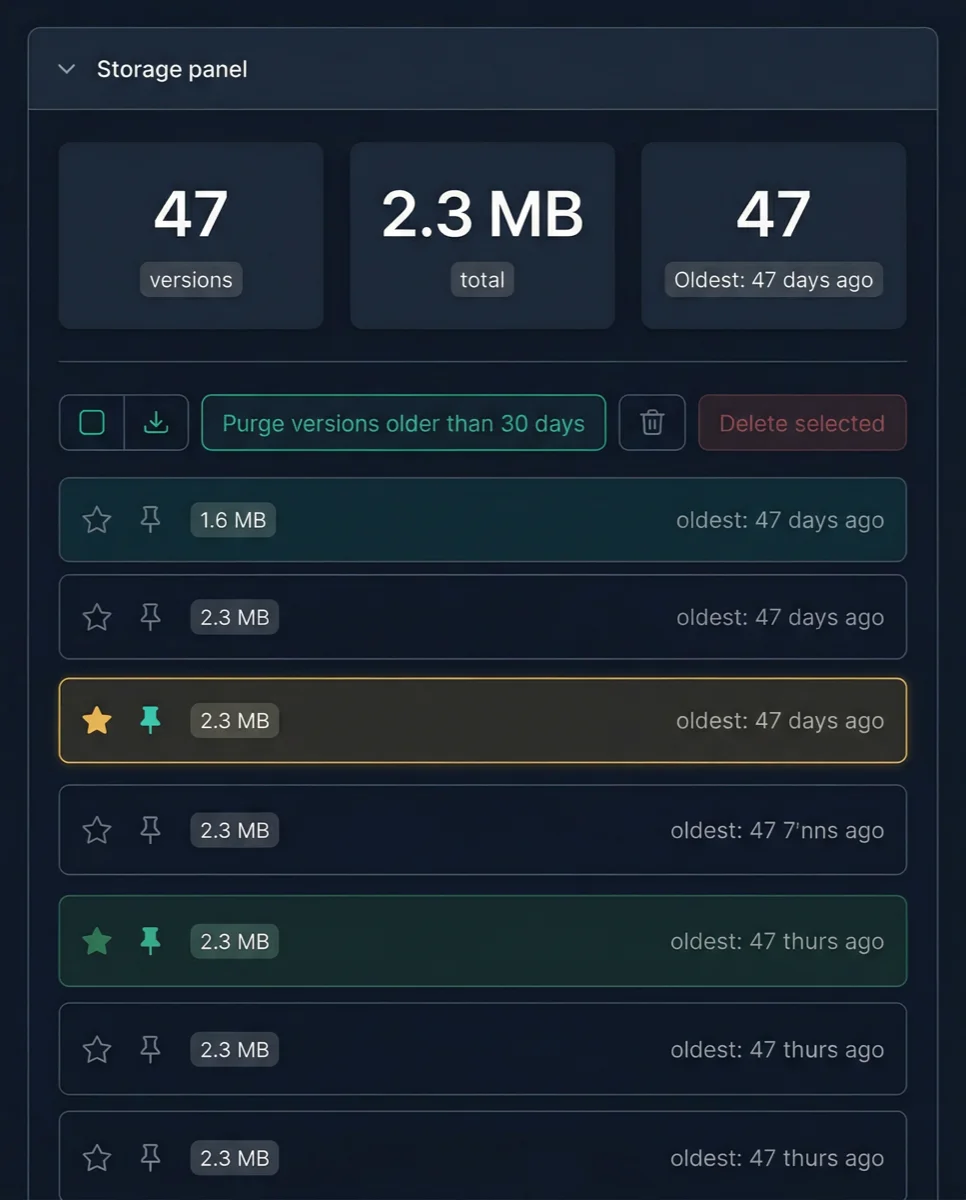
See exactly how much database space your versions use. Purge old ones in bulk, pin the ones that matter, or select and delete individually. The cleanup skips pinned versions so your important rollback points are always safe.

  • Total count and size at a glance
  • Purge versions older than 30 days
  • Pin versions to protect from cleanup
Storage management section showing total version size and purge controls.

Feature 3

No more broken menu links

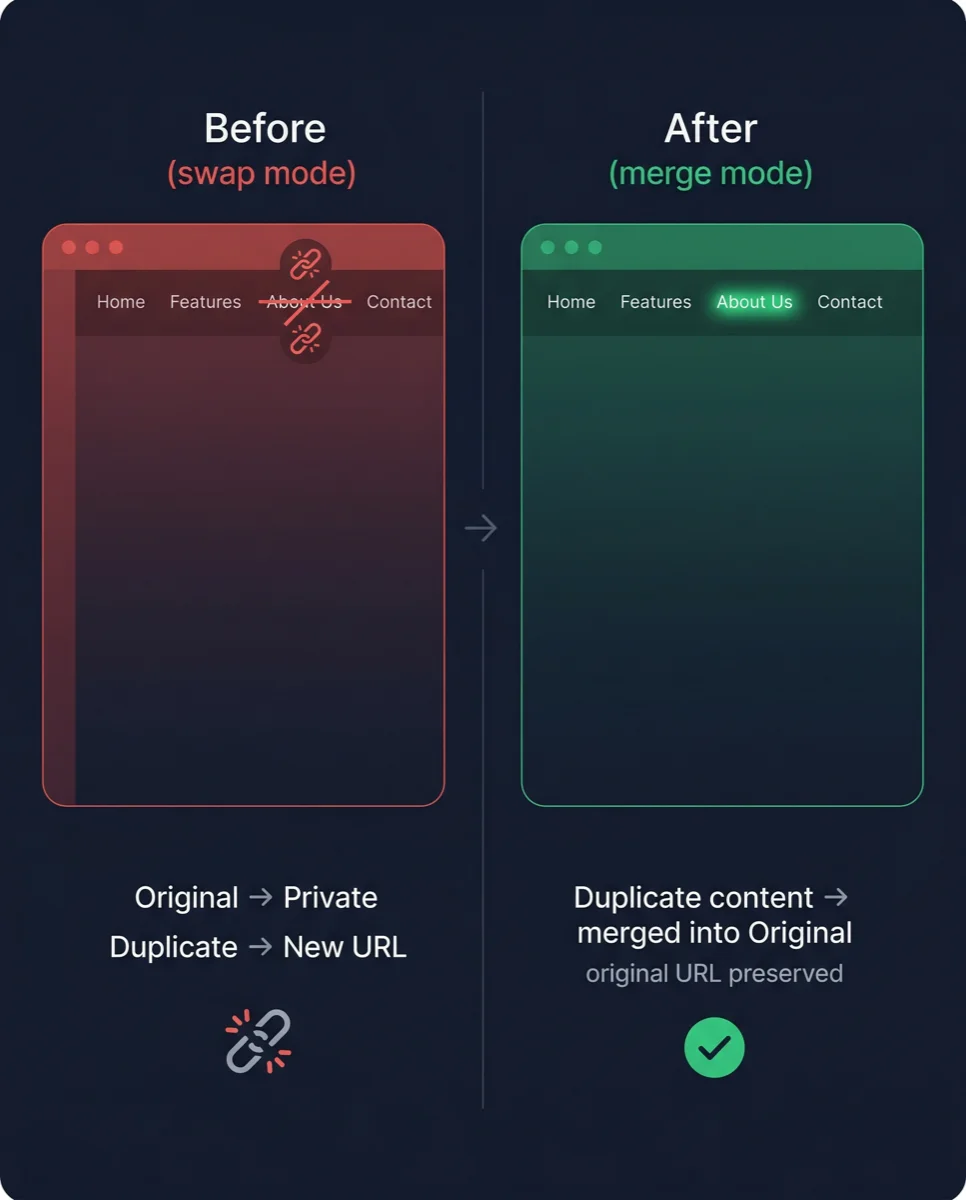
This one came directly from a user. They approved a page through Respira, and their header navigation broke because the original page went private. Merge mode fixes this by writing the duplicate content into the original post, keeping its URL and all menu references intact.

  • Original post ID preserved on approval
  • Menu links, internal links, and redirects all stay valid
  • Filter available to opt out if needed
Before and after comparison showing swap mode breaking links vs merge mode preserving URLs.
  • Native WordPress revisions on every edit

    Every Respira force edit now calls wp_save_post_revision() before writing changes. This means the familiar Revisions panel in the WordPress editor shows pre-edit states. Combined with Respira versions, you get both the WP-native undo path and the full-fidelity restore path.

  • Pinned versions survive cleanup

    Star any version to pin it. Pinned versions are excluded from the 90-day retention policy, manual purge, and bulk delete. Use this for known-good states you want to keep indefinitely — like the version right before a redesign.

  • before_restore safety net

    When you restore a version, Respira captures the current state as a before_restore snapshot first. If the restore does not go as expected, you can restore the before_restore version to get back to where you were. Every restore is reversible.

  • WebMCP write tools are now protected

    Respira exposes powerful MCP tools that can edit pages, posts, and custom post types directly. In 5.0, every write operation — update_page, update_post, apply_builder_patch — captures a before-state snapshot automatically. AI agents can edit freely knowing every change is reversible from the Changes page.

  • Per-CPT swap mode opt-out

    If you have custom post types that need the old swap behavior, set respira_swap_mode_cpt_slugs to a comma-separated list of post type slugs. Those types will continue using swap mode while everything else uses merge.

Technical details

What shipped

  • Changes page — unified admin view for pending duplicates, version history, and one-click restore
  • Storage management — view total size, purge old versions, bulk delete, pin important ones
  • Merge mode default — approving a duplicate preserves the original URL and menu links
  • Auto WP revisions — every Respira edit creates a native WordPress revision
  • Auto snapshots — before and after states captured on every force edit
  • Pinned versions — star any version to protect it from cleanup and purge
  • Restore safety — current state is always captured before any revert
  • WebMCP write protection — snapshot captured before every write tool mutation

Breaking changes

Merge mode default

  • Merge mode is now the default. Approving a duplicate merges content into the original, preserving its ID and URL. Previously, the original was swapped to private — breaking menu links.
  • To keep the old swap behavior, add this filter:
add_filter(
  'respira_preserve_original_id_on_approve',
  '__return_false'
);

Migration guide

What to do next

  • Update the plugin to 5.0.0 from your WordPress dashboard.
  • Test the approval workflow on staging if your theme relies on post-swap behavior.
  • The new Changes page appears automatically under the Respira menu after update.
  • No MCP server update required — MCP stays at 4.0.8.

How to upgrade

Update the plugin. No MCP server change needed.

Plugin

WordPress Admin -> Plugins -> Update Respira for WordPress to 5.0.0

MCP Server

# No update needed — MCP stays at 4.0.8
npx -y @respira/wordpress-mcp-server

If you use the approval workflow

  1. Update to 5.0.0 on a staging site first.
  2. Test approving a page — verify the original URL stays live.
  3. If your workflow depends on swap mode, add the opt-out filter before updating production.
  4. Check the new Changes page under the Respira menu.

Opt out of merge mode

// Add to your theme's functions.php or a custom plugin:
add_filter(
  'respira_preserve_original_id_on_approve',
  '__return_false'
);
Respira 5.0 Haven — protective dome over a miniature WordPress city on a craftsman's desk

Previous release

Before 5.0 fixed the safety gap, 4.2 fixed the workflow friction.

If 5.0 is the safety-and-visibility release, 4.2 was the workflow-fix release: compact MCP responses, working copy consolidation, and a real account-wide multi-site setup flow.