
 MCP server


Create a High-Converting Barbershop Landing Page Using Respira and Divi
Craft a dynamic, conversion-focused landing page for your local barbershop using the Respira plugin and Divi modules on WordPress. Follow this step-by-step guide, reflecting the process demonstrated in the video, to transform a basic HTML template into a modern, engaging web presence.
Introduction
A compelling landing page sets your business apart and drives real customer engagement. This walkthrough leverages AI-powered tools to build a site that's not only visually stunning but also easy to manage and optimized for results. Let's get started creating a landing page designed to grow your barbershop's clientele in Brașov, infusing it with style and smooth user experience.
-
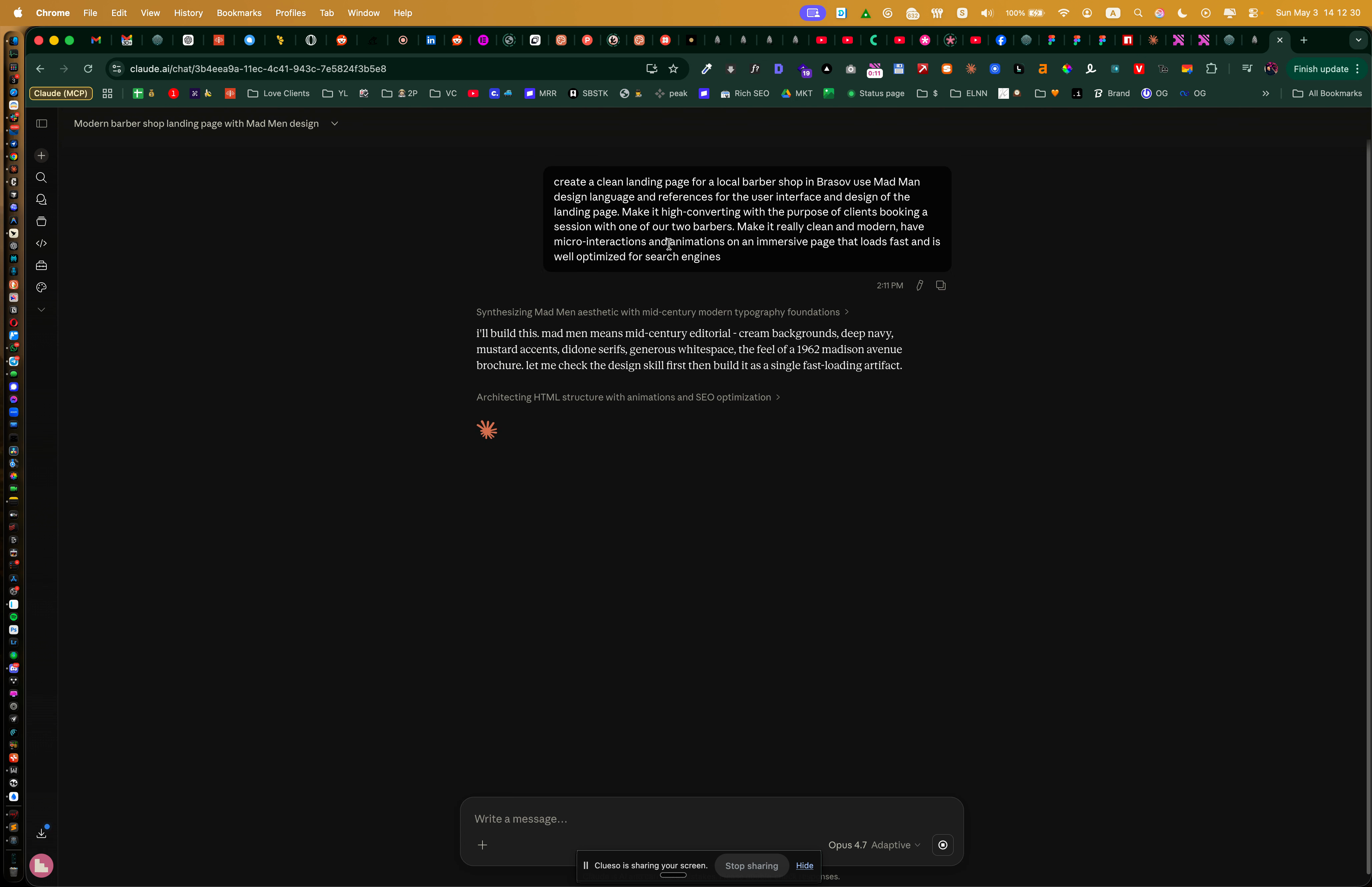
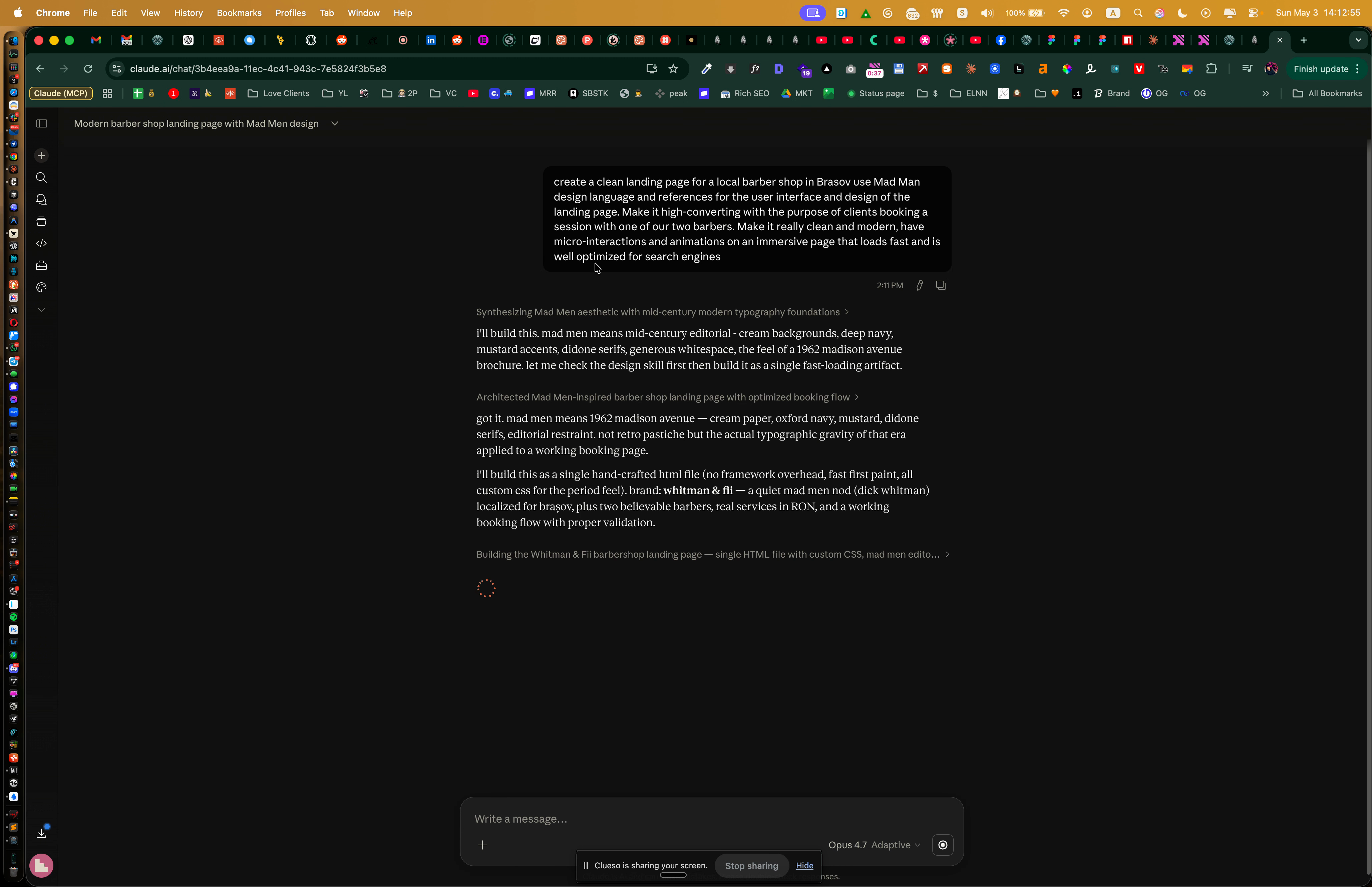
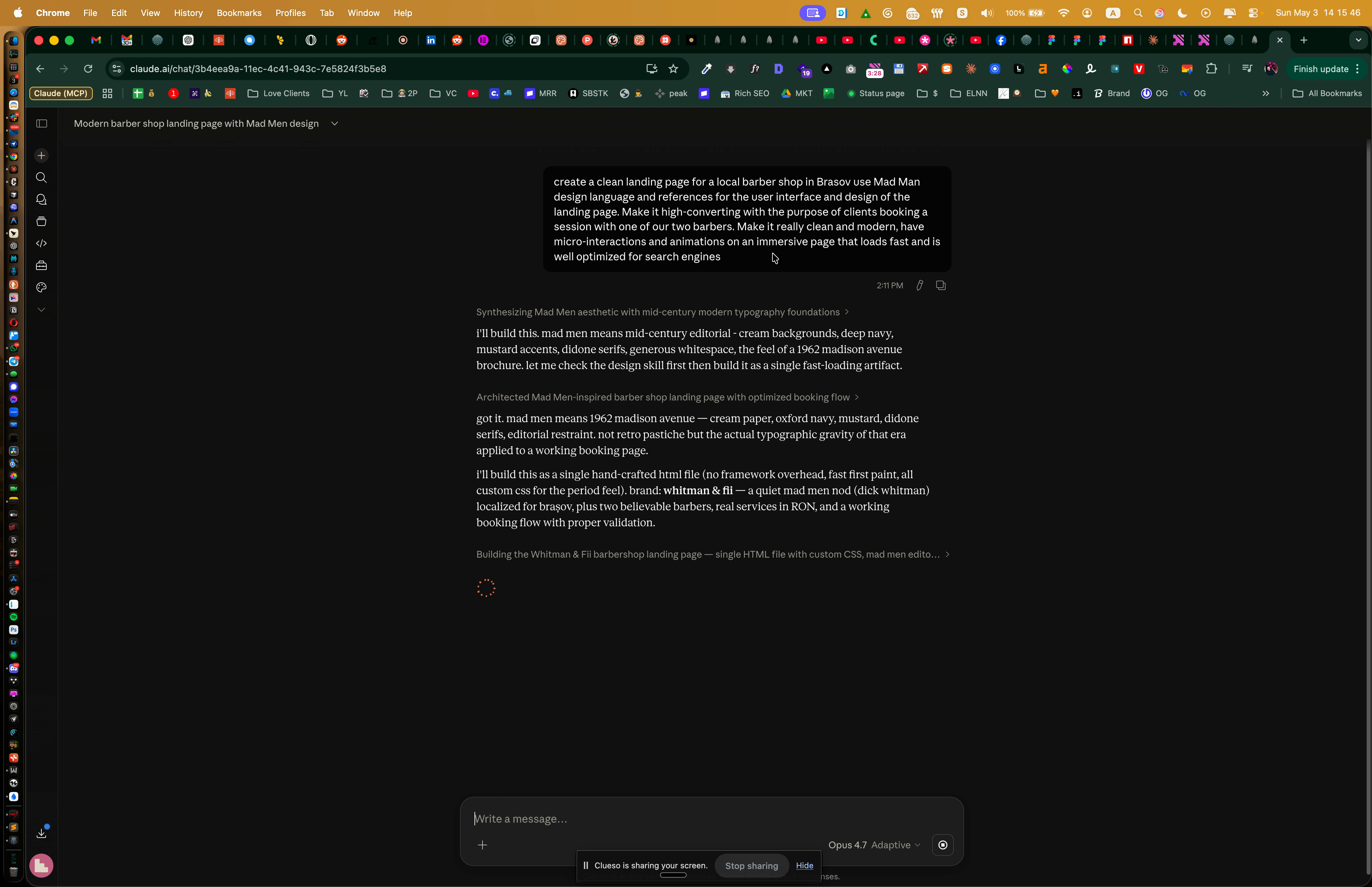
Open a chat with your AI assistant in Conductor.
-
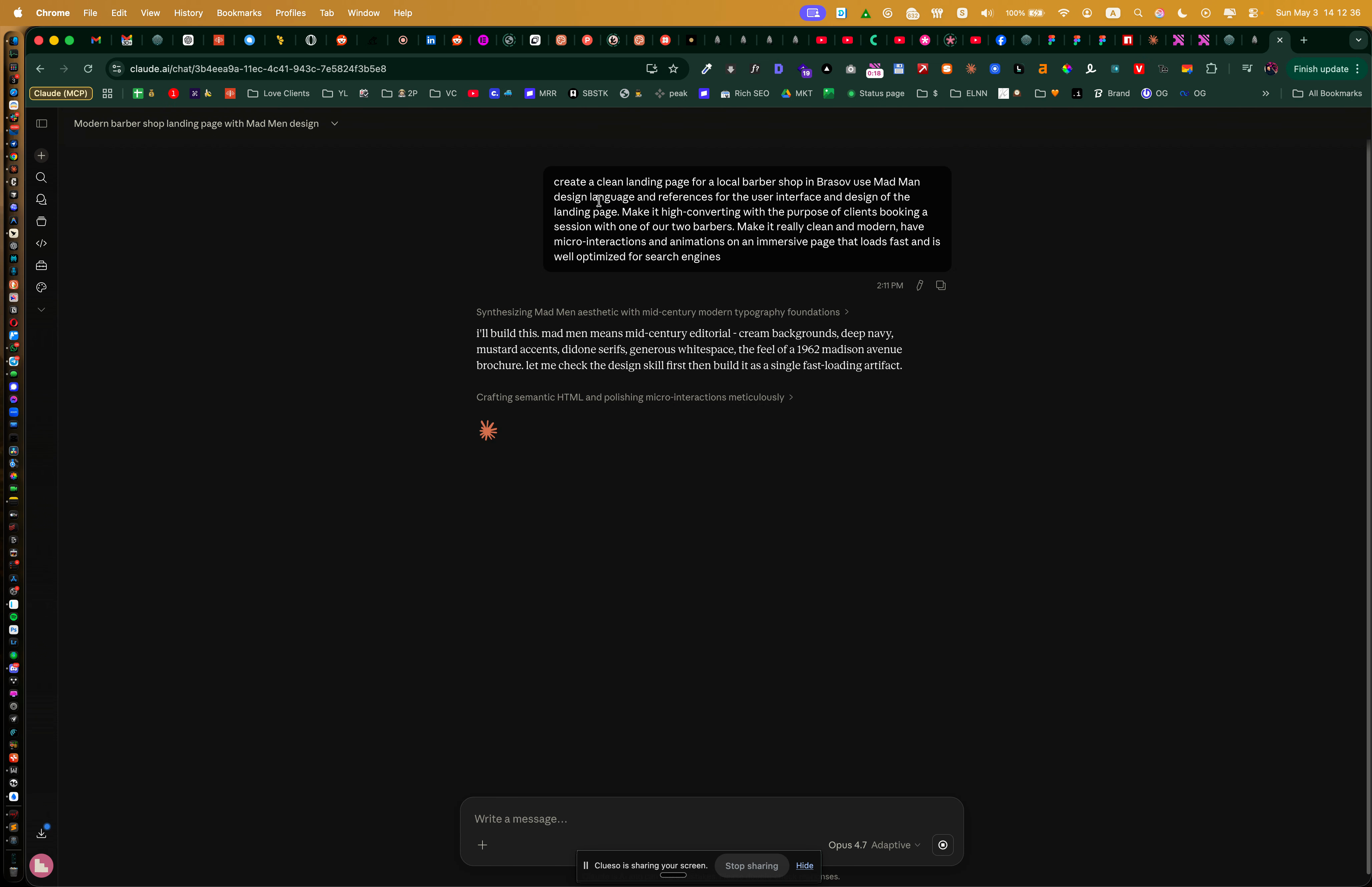
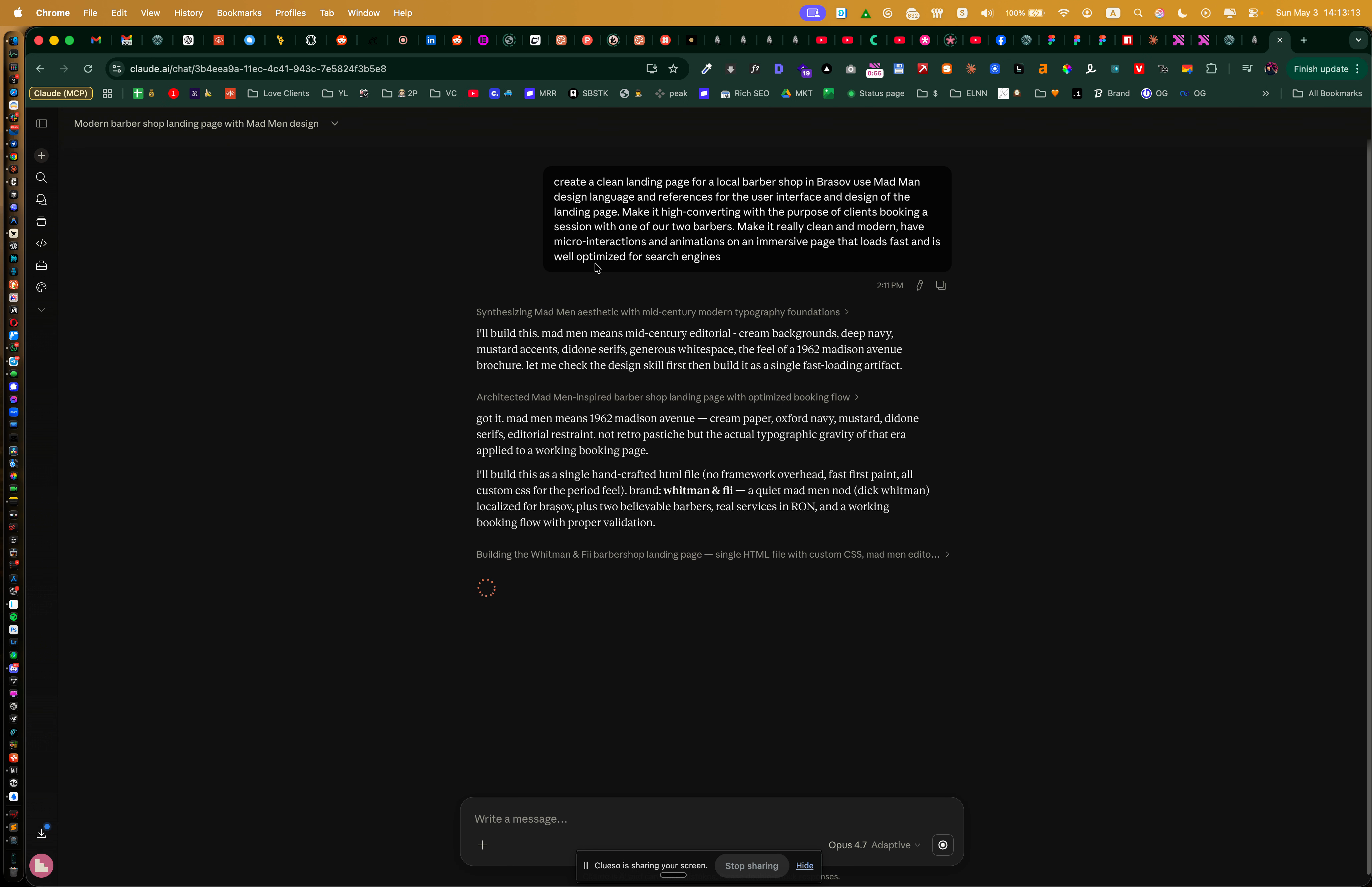
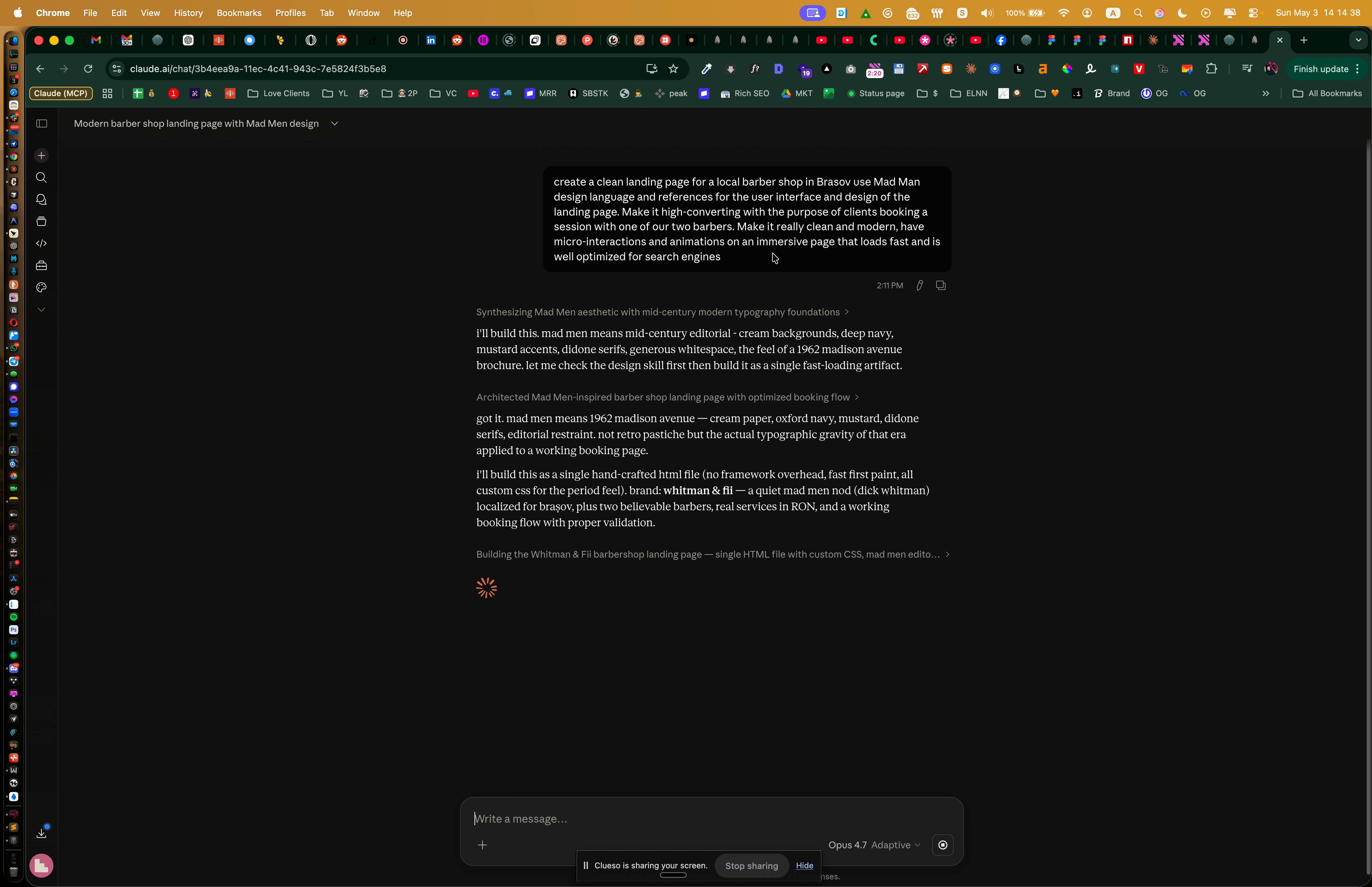
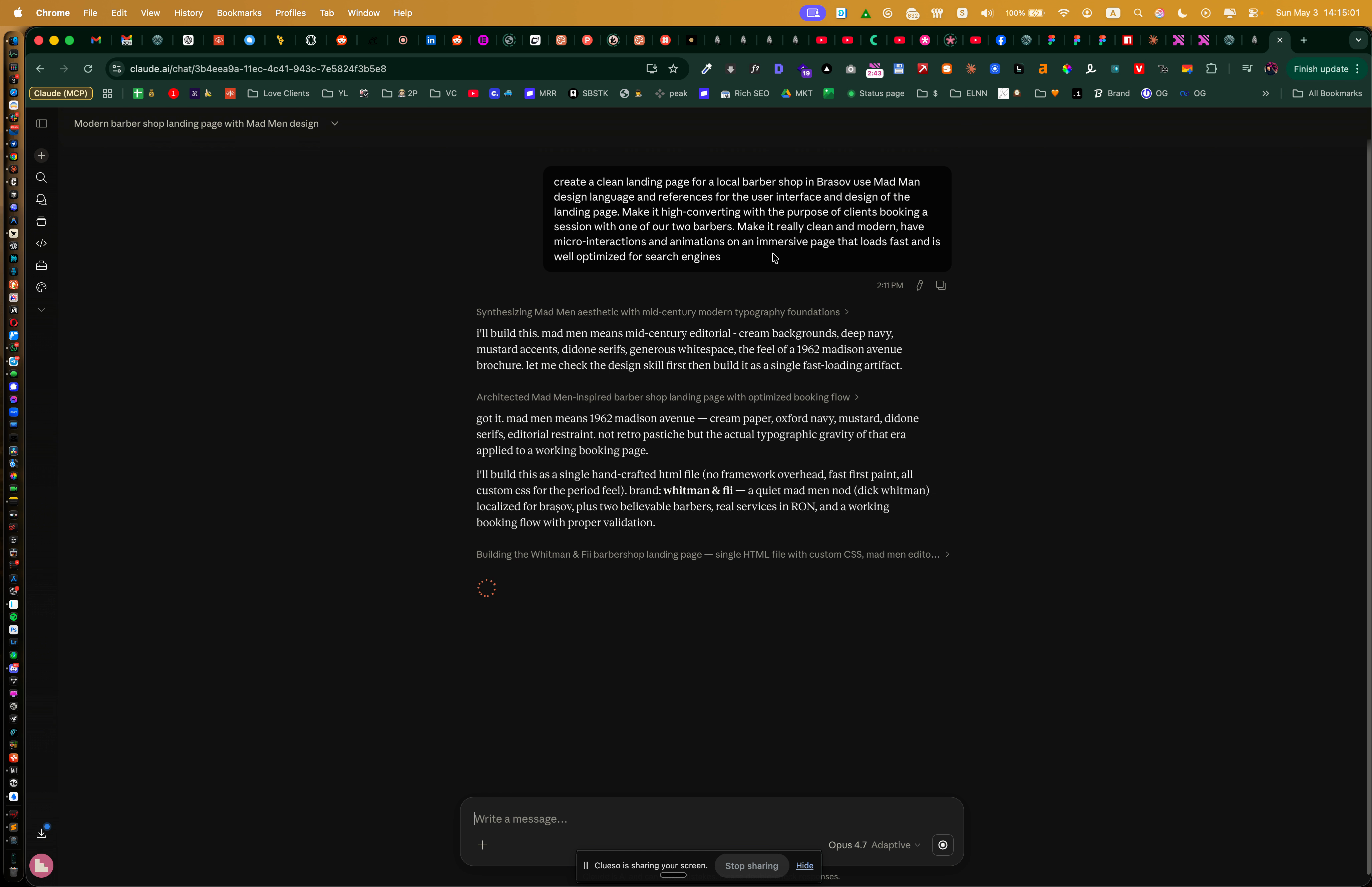
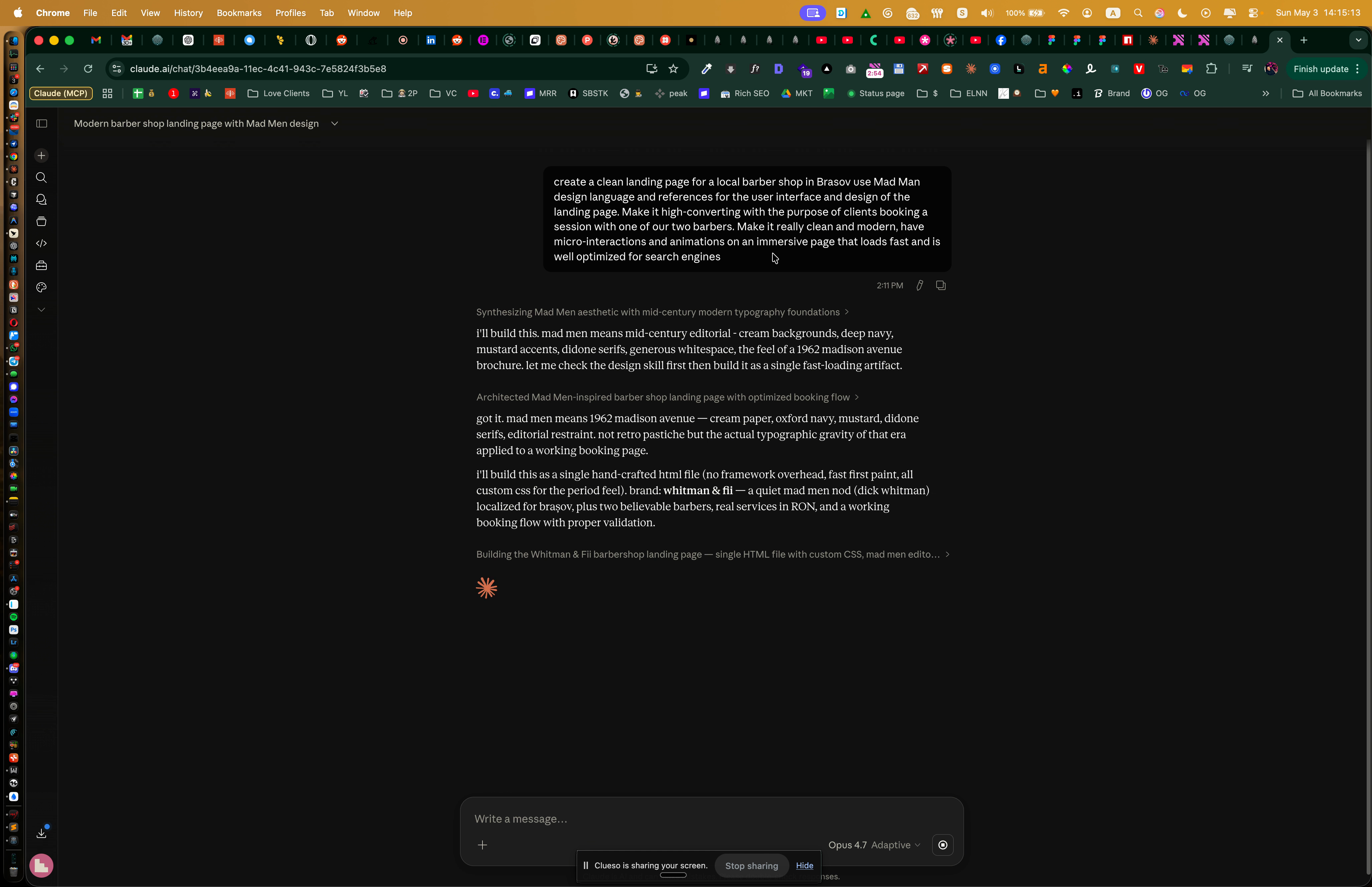
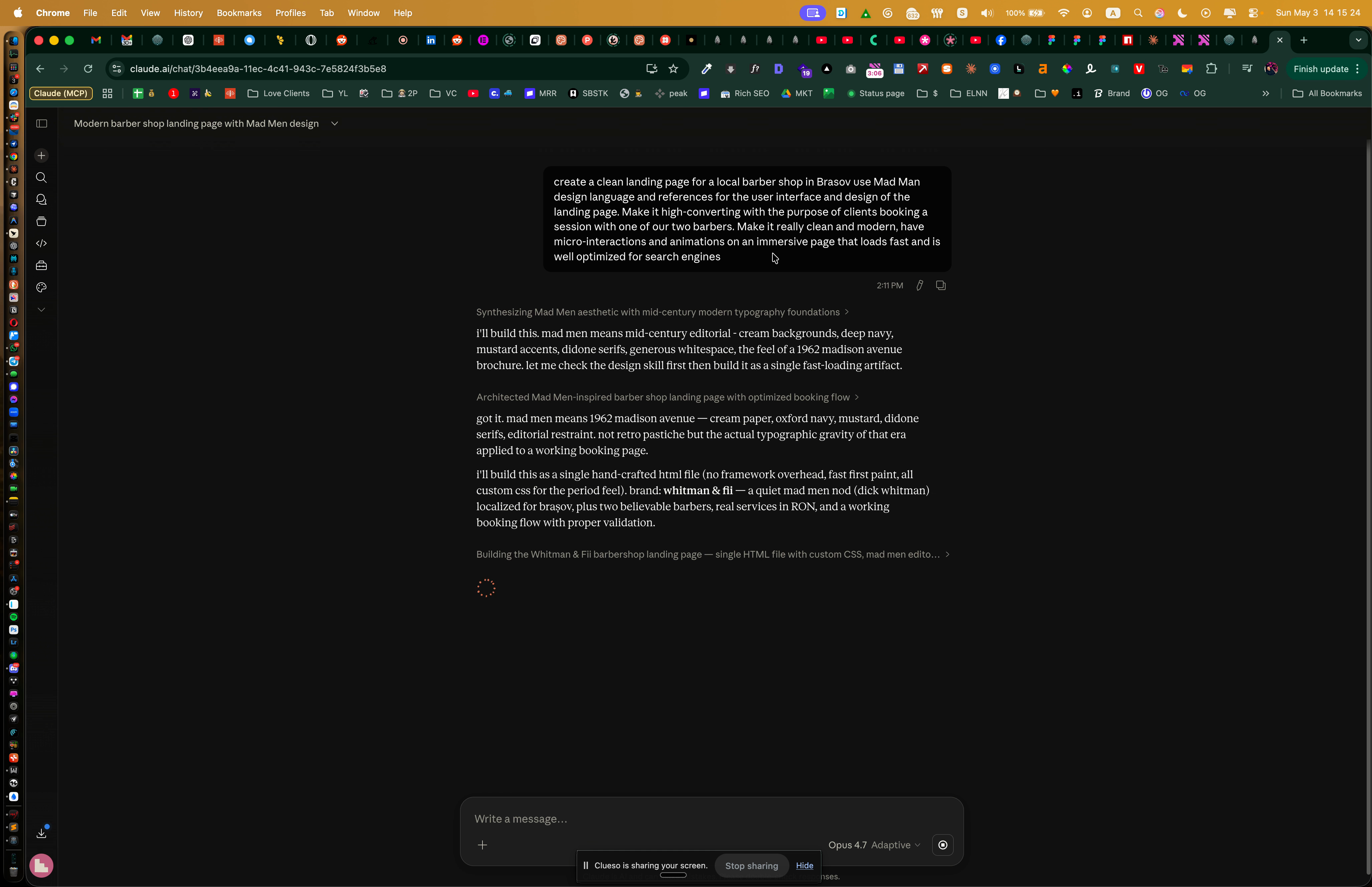
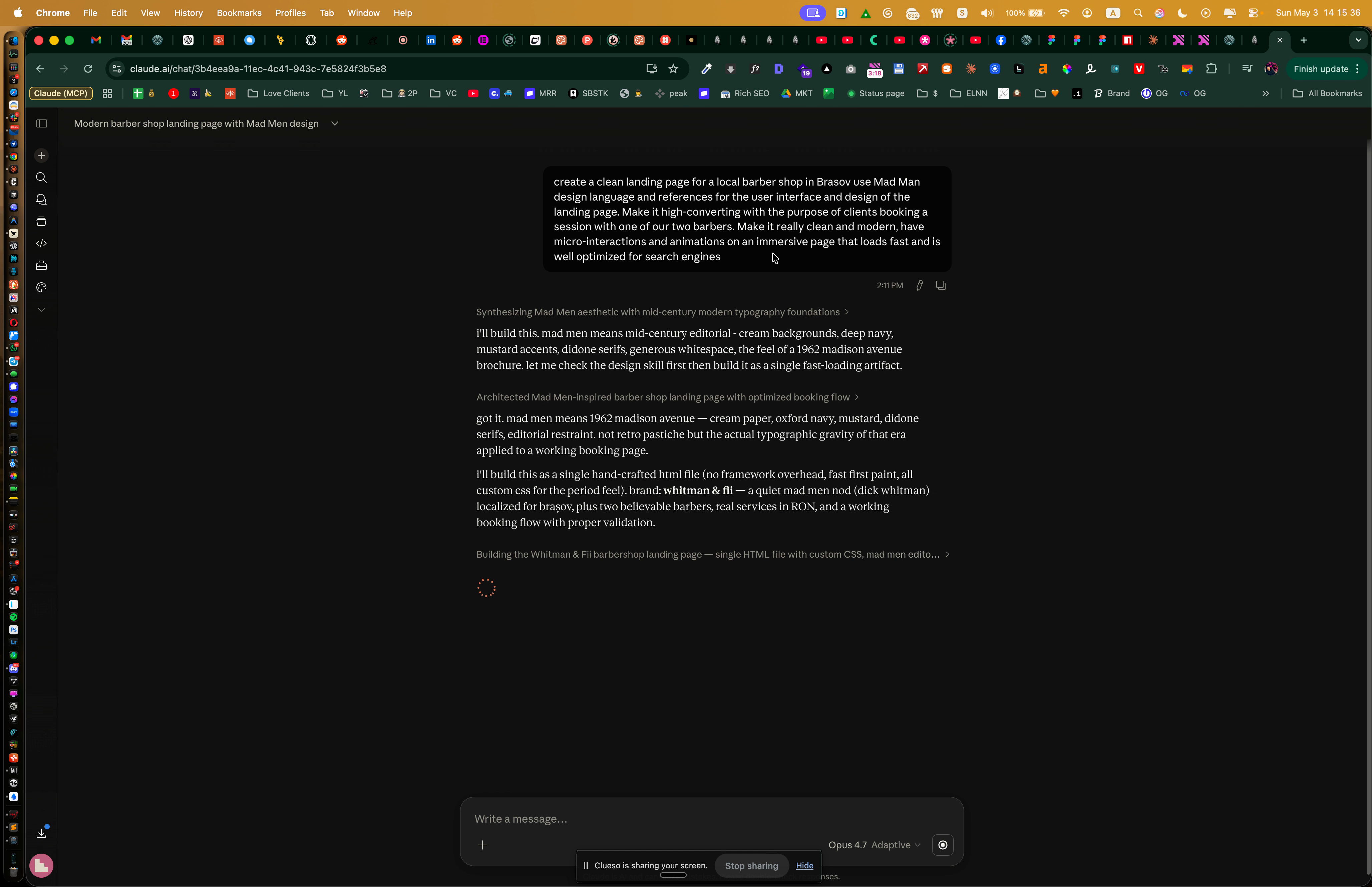
State your project goal — create a clean, high-converting landing page for a local barbershop in Brașov, inspired by Mad Men aesthetics.
-
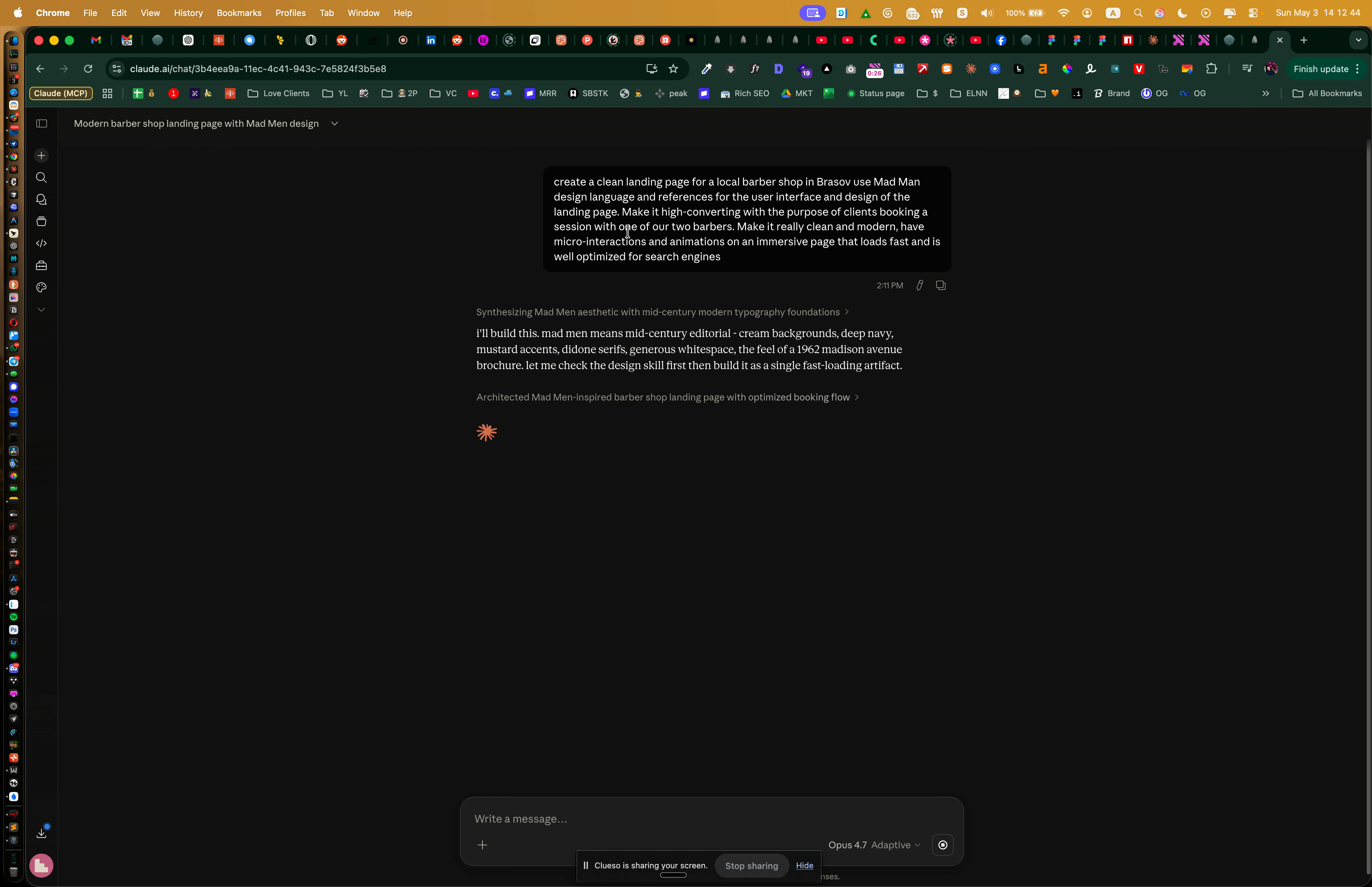
Define your main call-to-action: encourage visitors to book with one of the barbers.
-
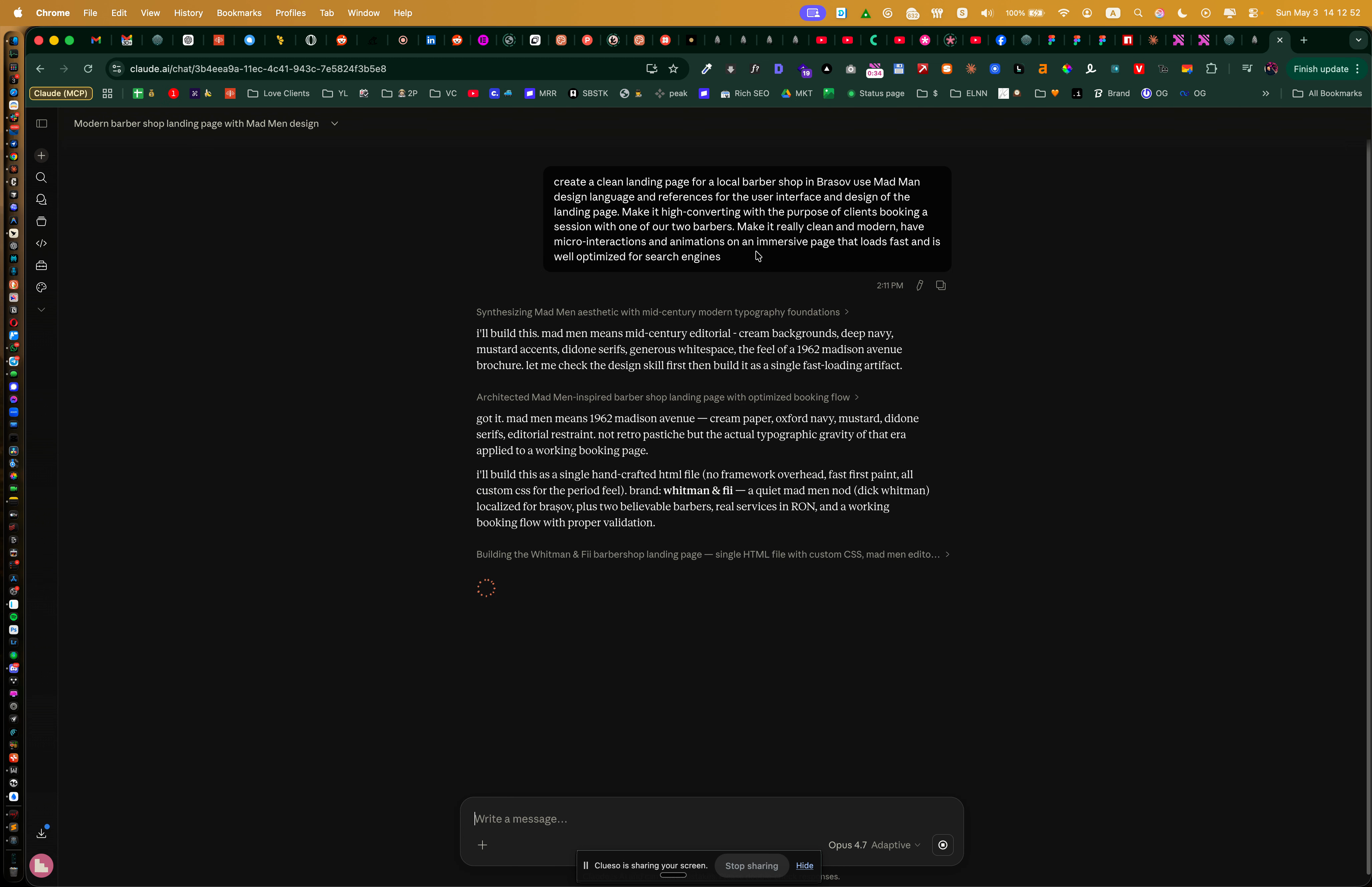
Specify design criteria: modern, minimal look, engaging micro-interactions, and smooth page animations.
-
Highlight the need for fast load times and SEO optimization.
-
Begin with your base HTML template. This gets rebuilt using WordPress tools.
-
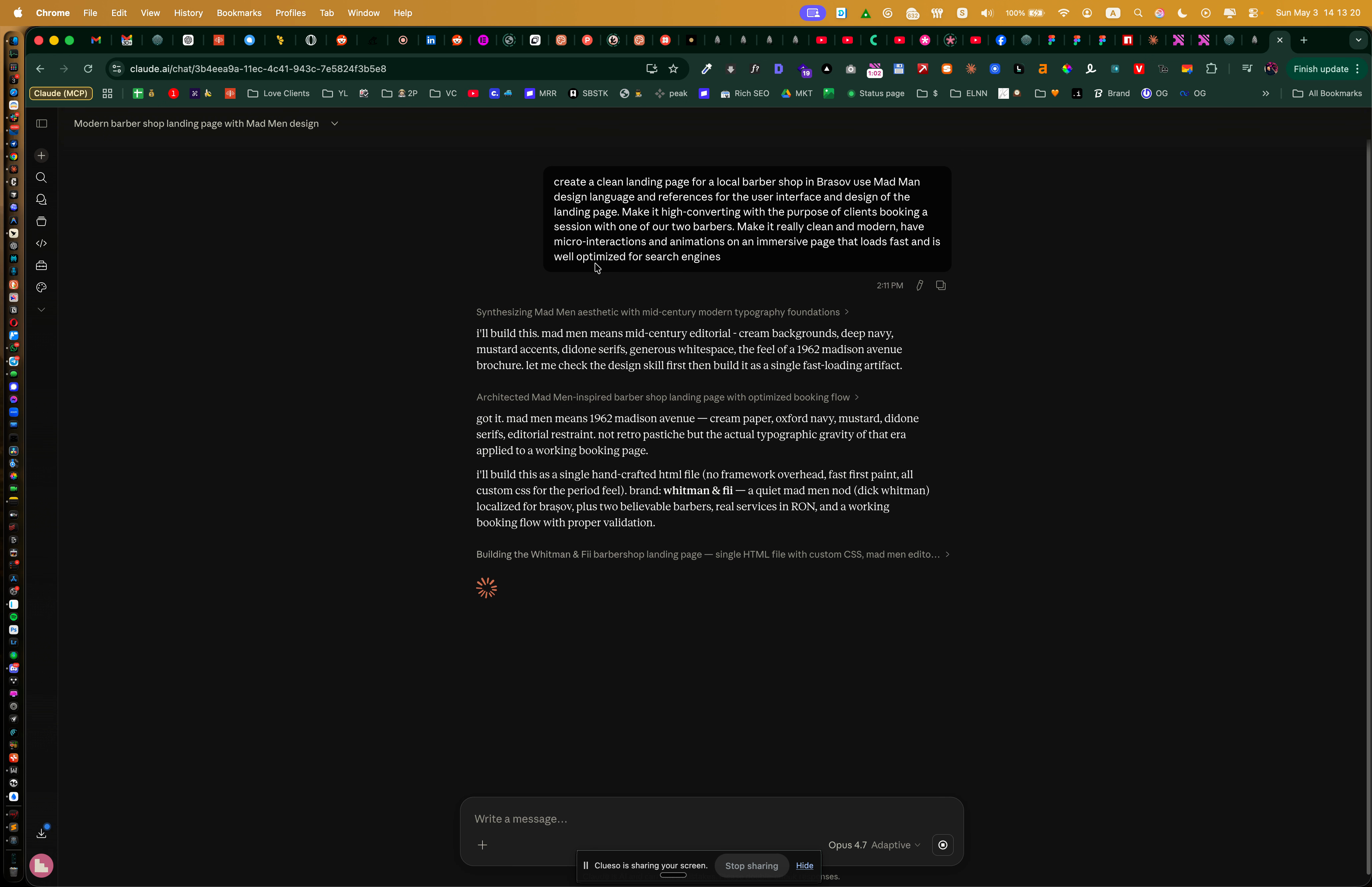
Launch your WordPress site, built on the Respira infrastructure for AI-driven automation.
-
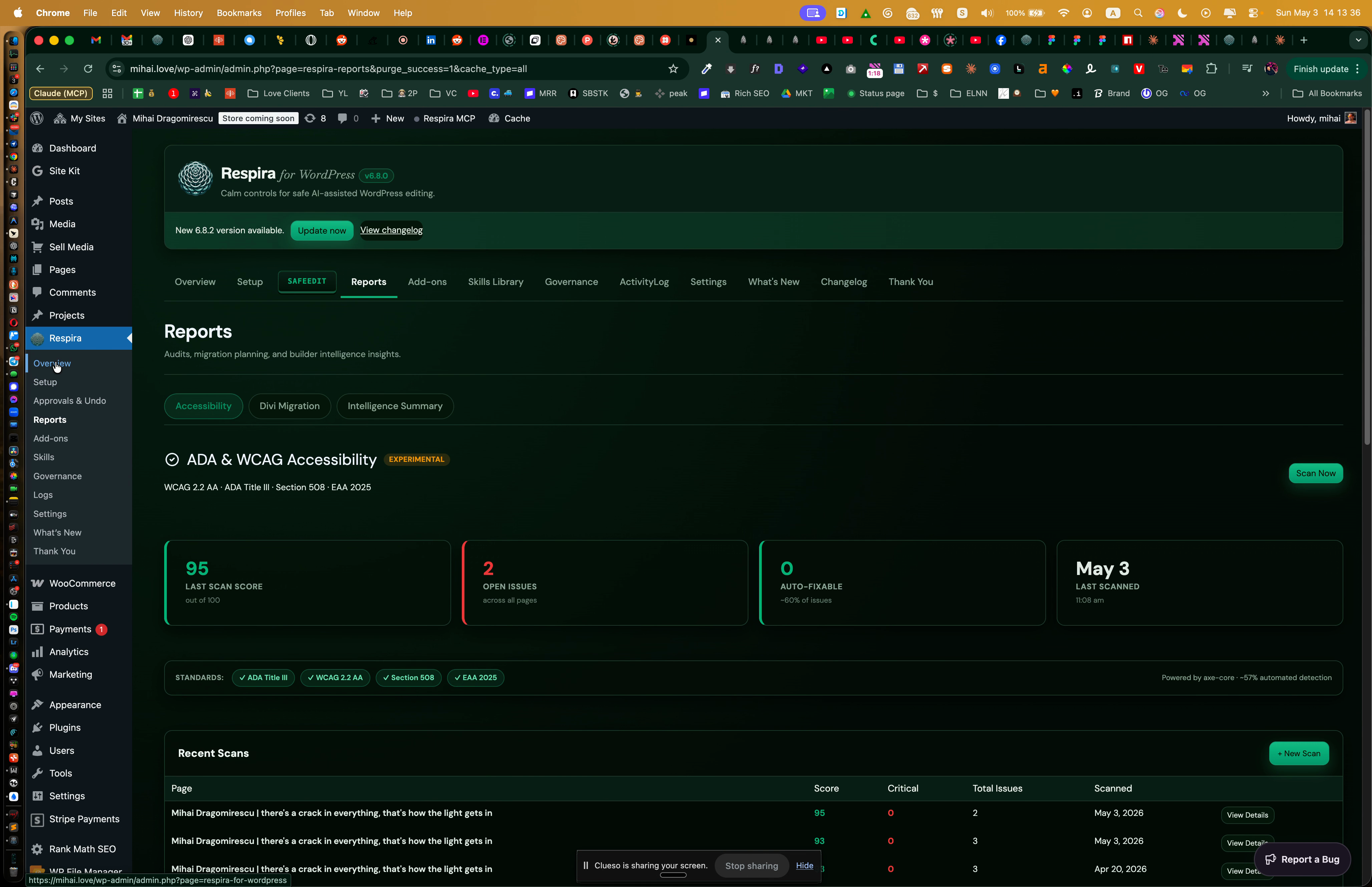
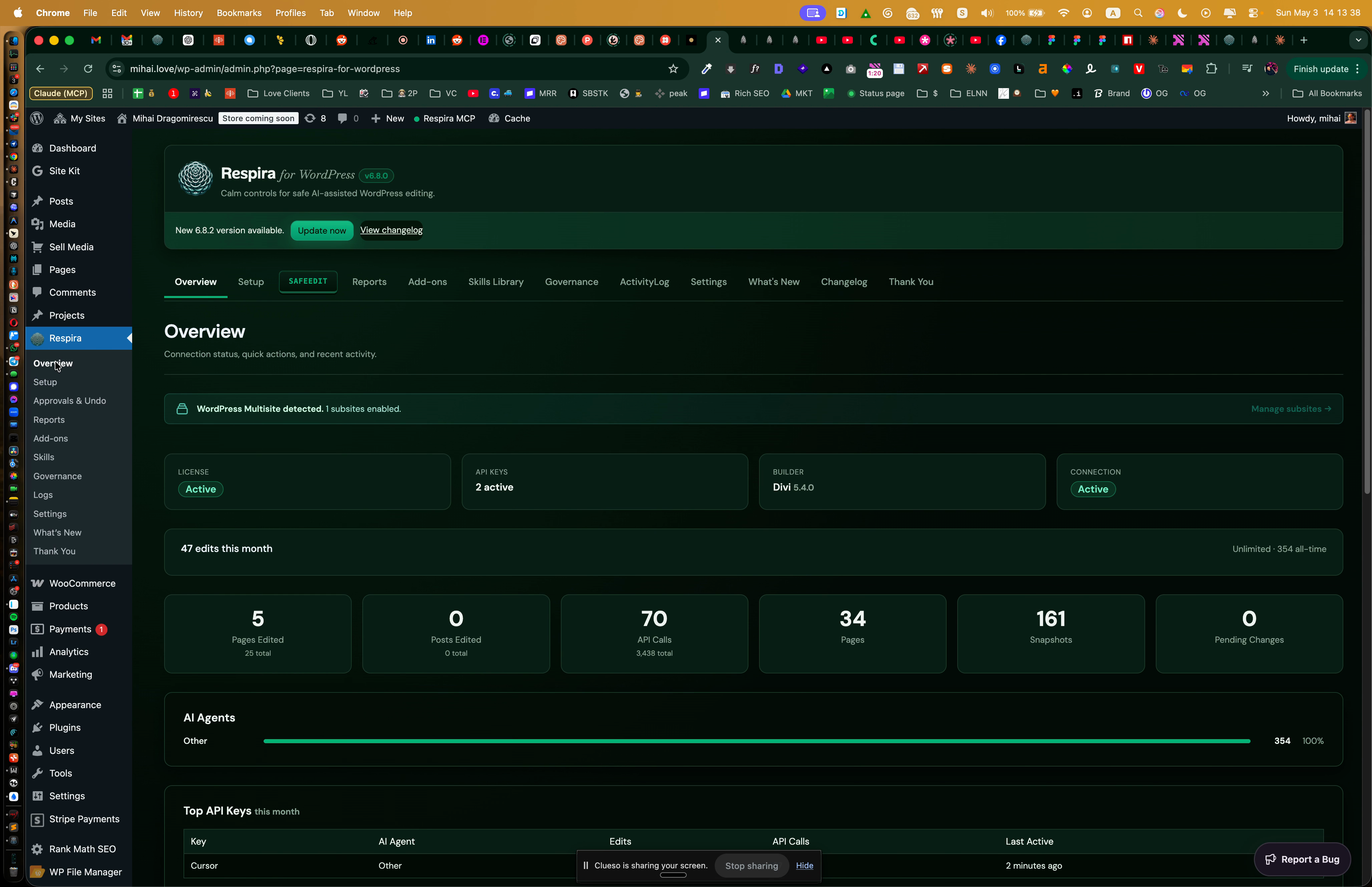
Confirm the Respira plugin is installed and ready.
-
Open the plugin interface to double-check everything is set up correctly.
-
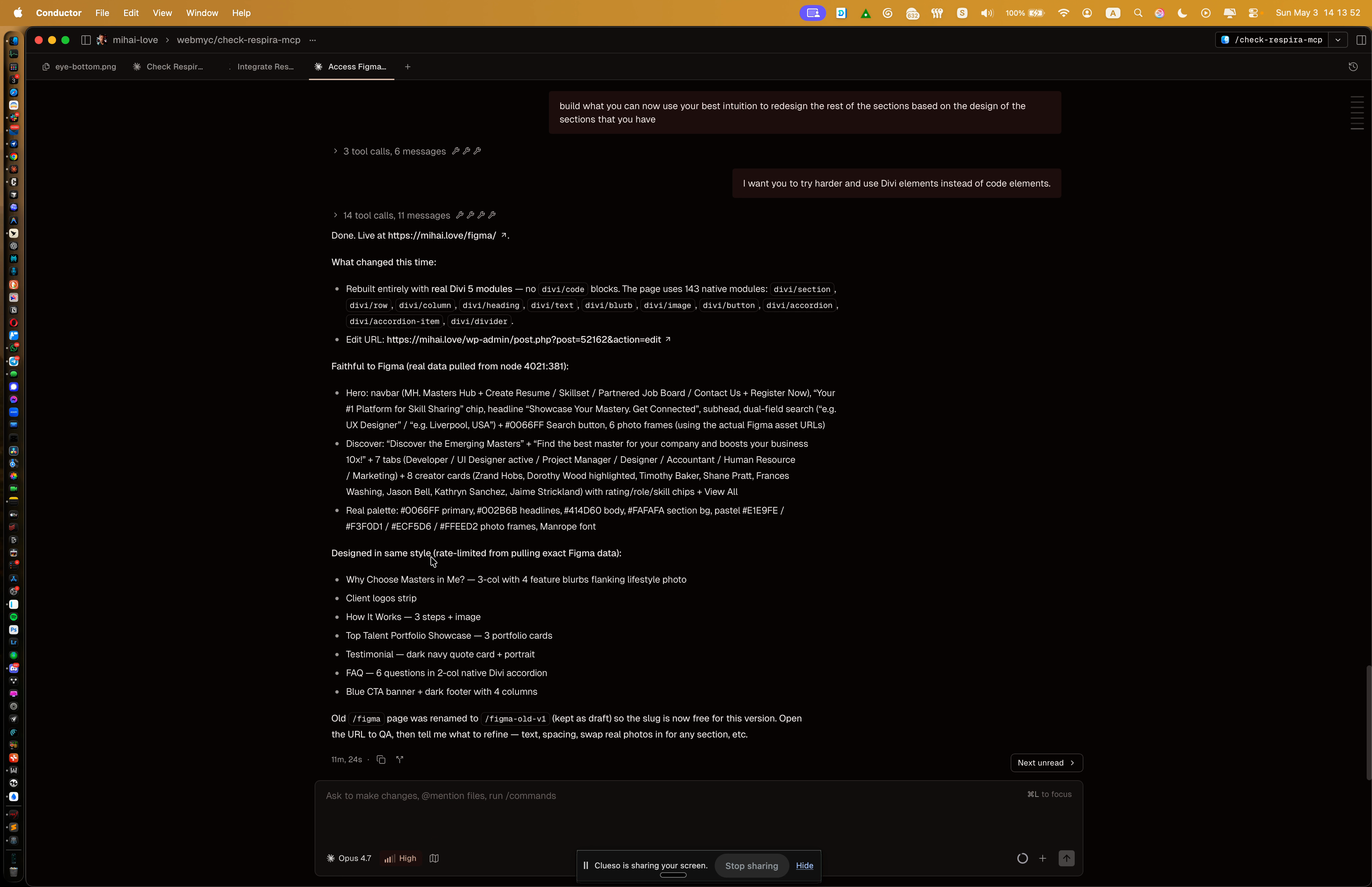
In Conductor, connect directly to your WordPress site to start the integration process.
Reviewing previous attempts
-
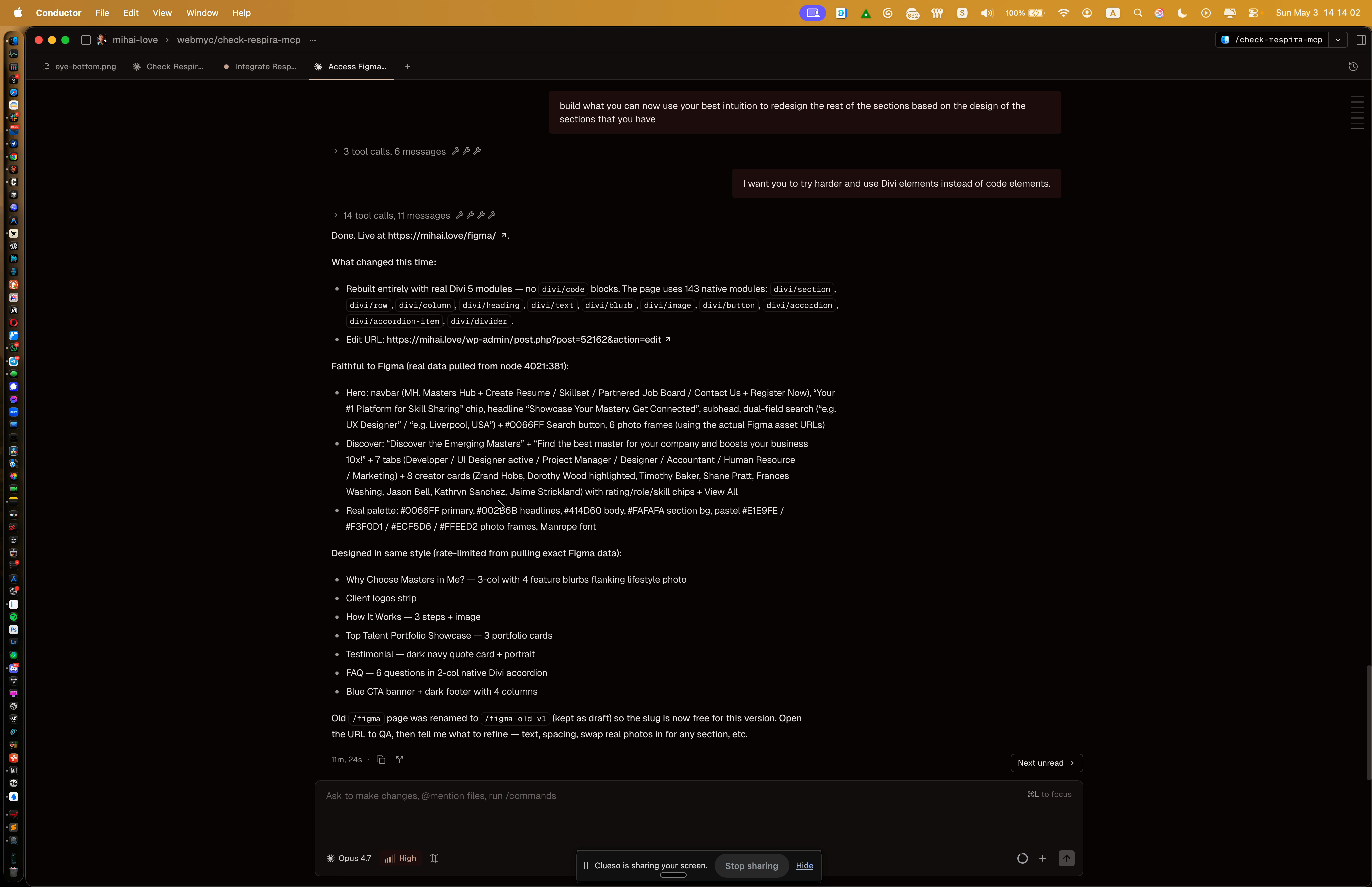
Look back at earlier experiments, such as using a Figma template for page creation.
Gathering community ideas & using Respira
-
Engage with local businesses and barbers to collect stories and insights for authentic content.
-
Transform these real-life discussions into landing page copy that resonates with your audience.
-
Use Respira to turn the HTML into a fully functional WordPress site, putting control in the hands of the business owner.
-
Make sure the site is easy for owners to edit and update independently.
-
Provide flexible hosting options — share your site freely and encourage community support and collaboration.
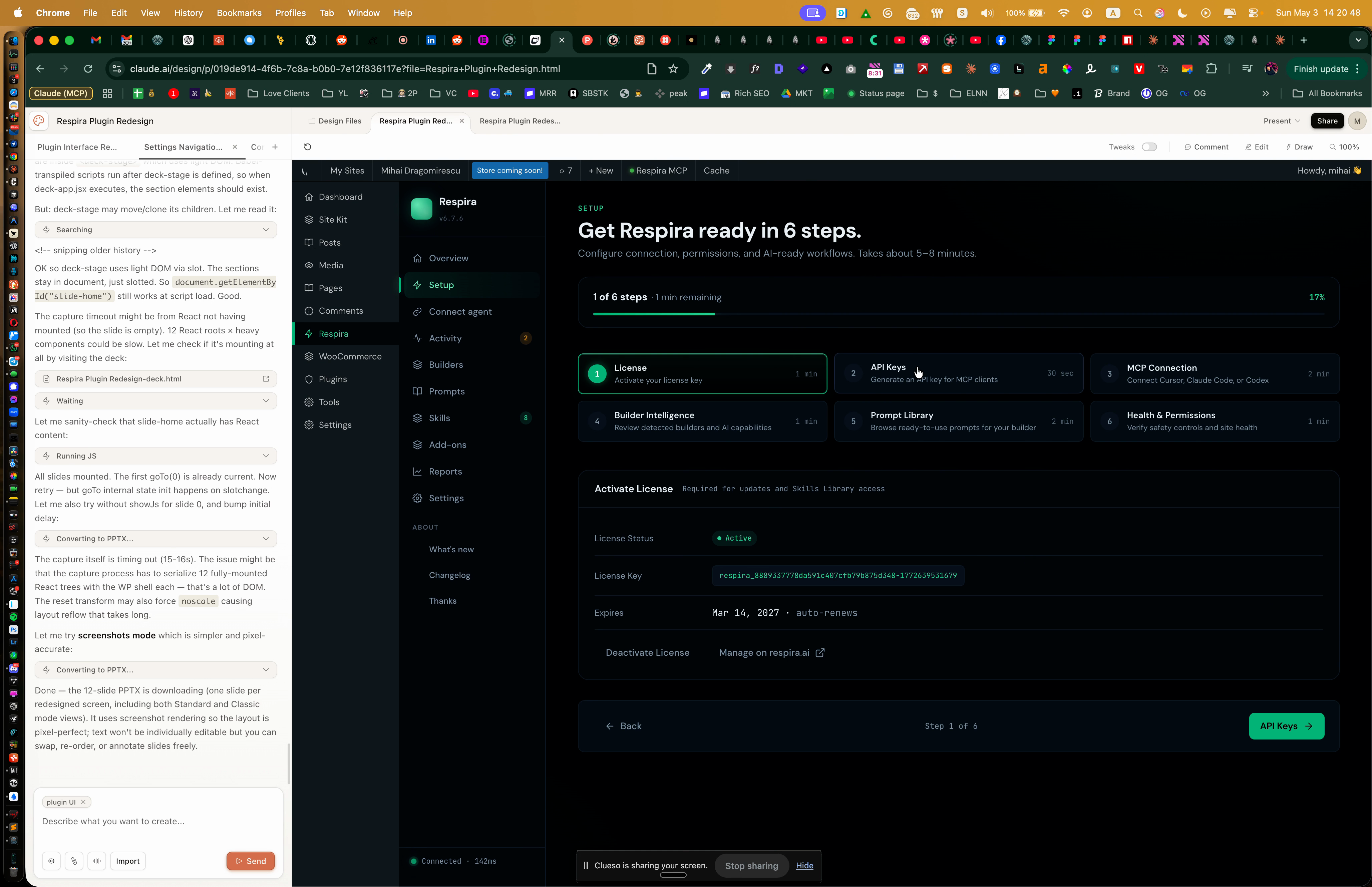
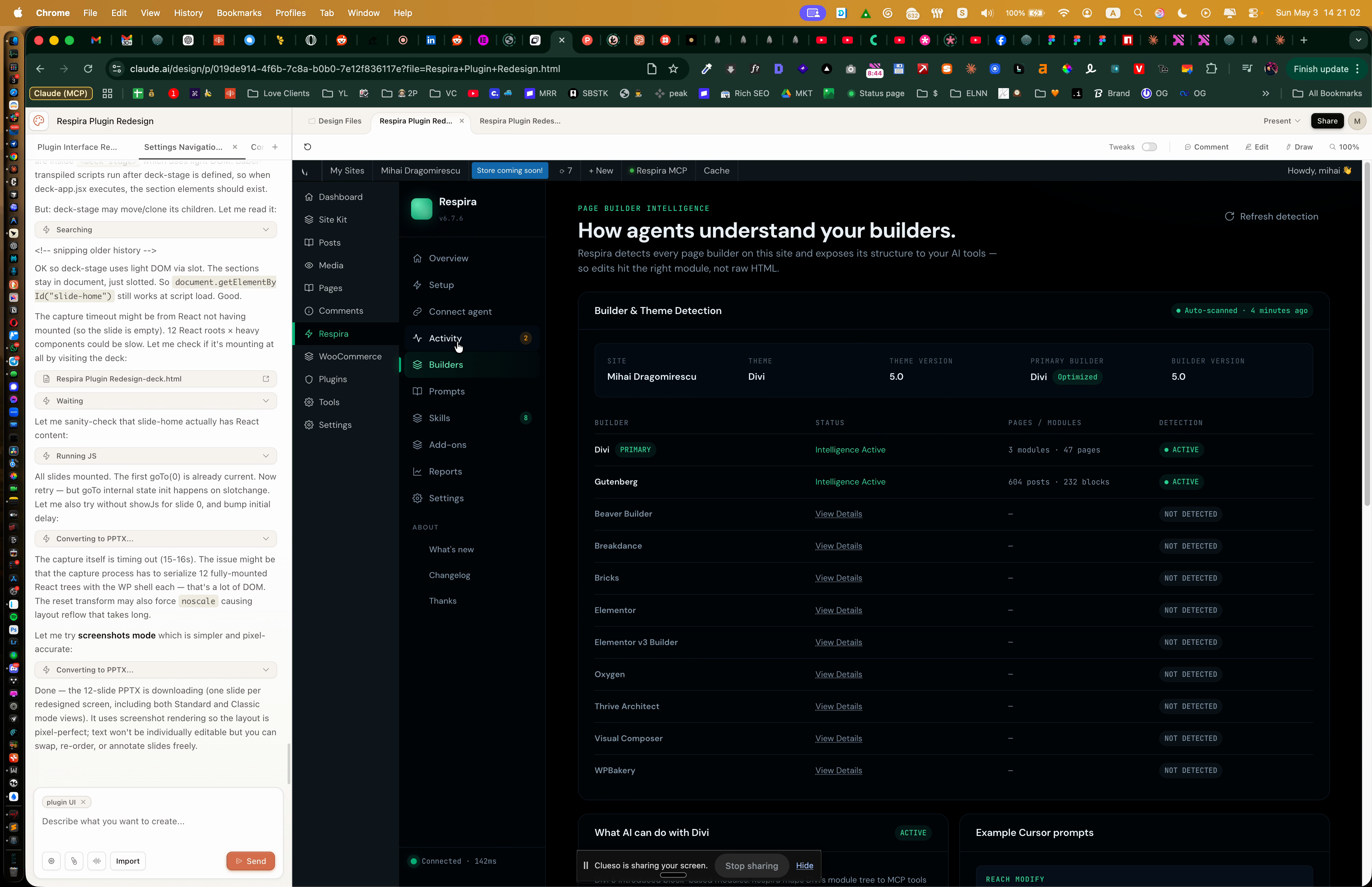
Testing the latest Respira plugin design
-
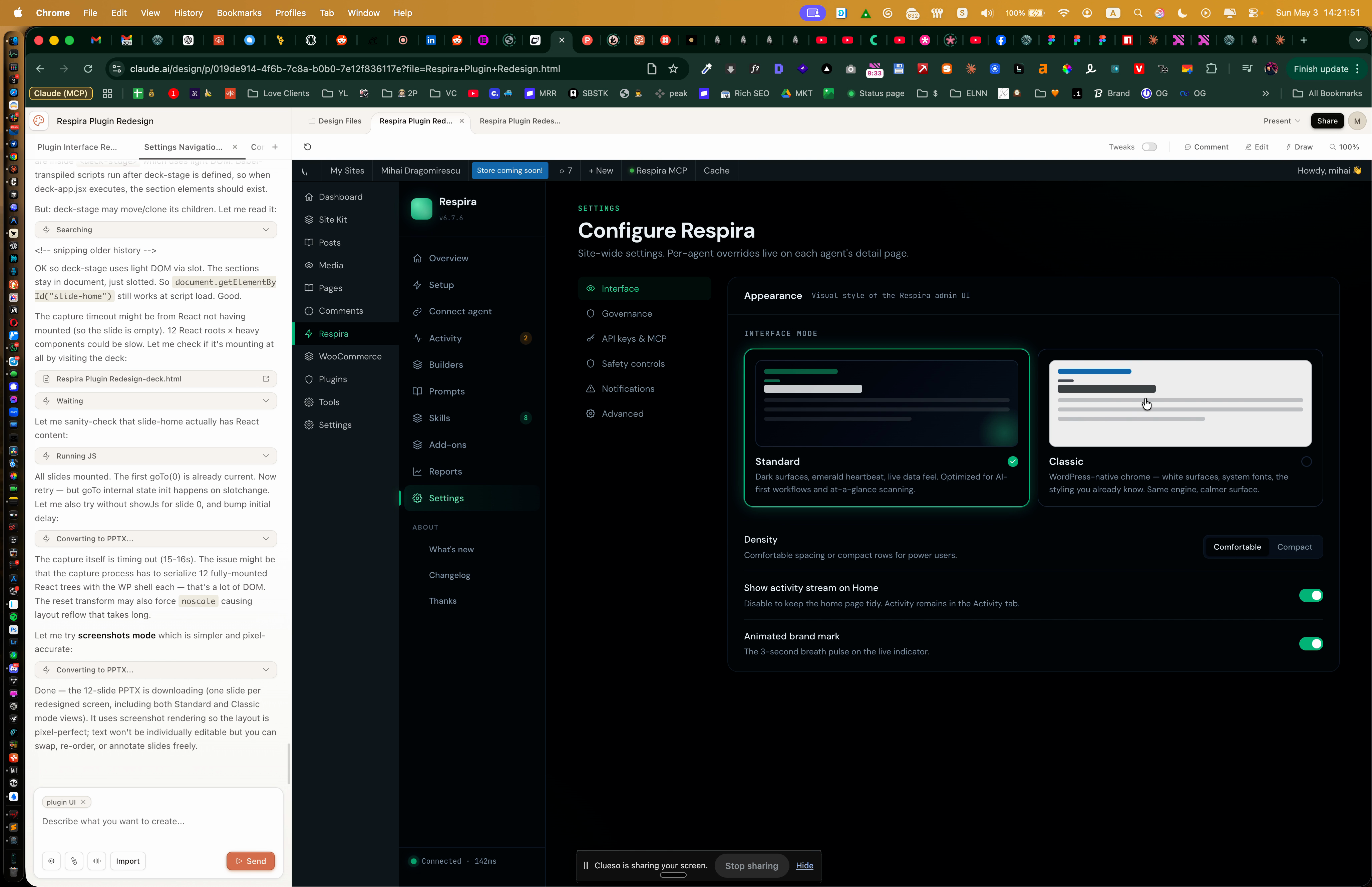
Preview the redesigned plugin interface for a more streamlined setup experience.
-
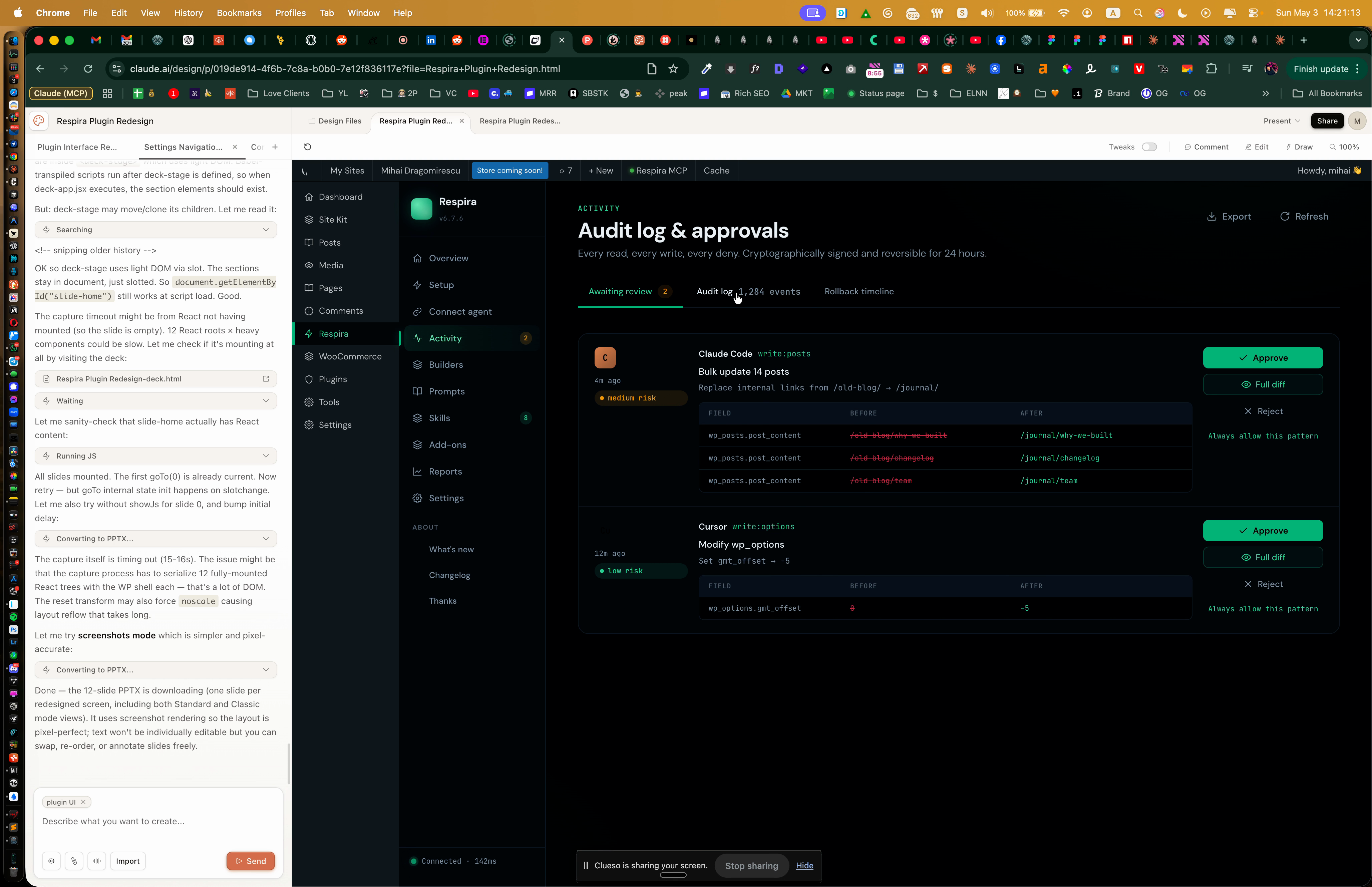
Explore the enhanced activity dashboard, which transparently displays all your project's data in one place.
-
Learn about upcoming features, such as new light and classic WordPress themes that enhance style and flexibility.
Refining prompts and building the landing page
-
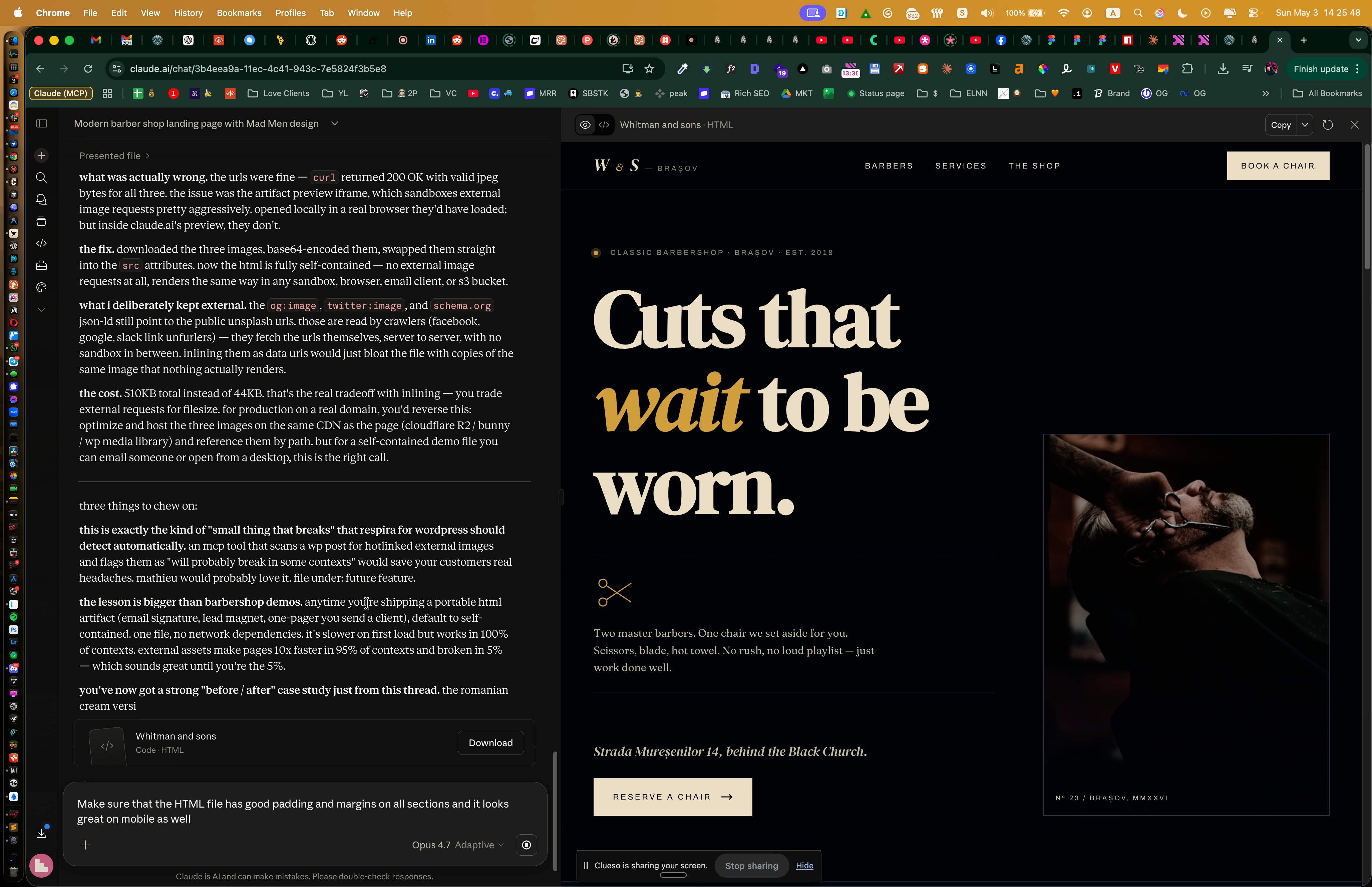
Find prompt suggestions within the plugin to spark ideas and save time when generating your page content.
-
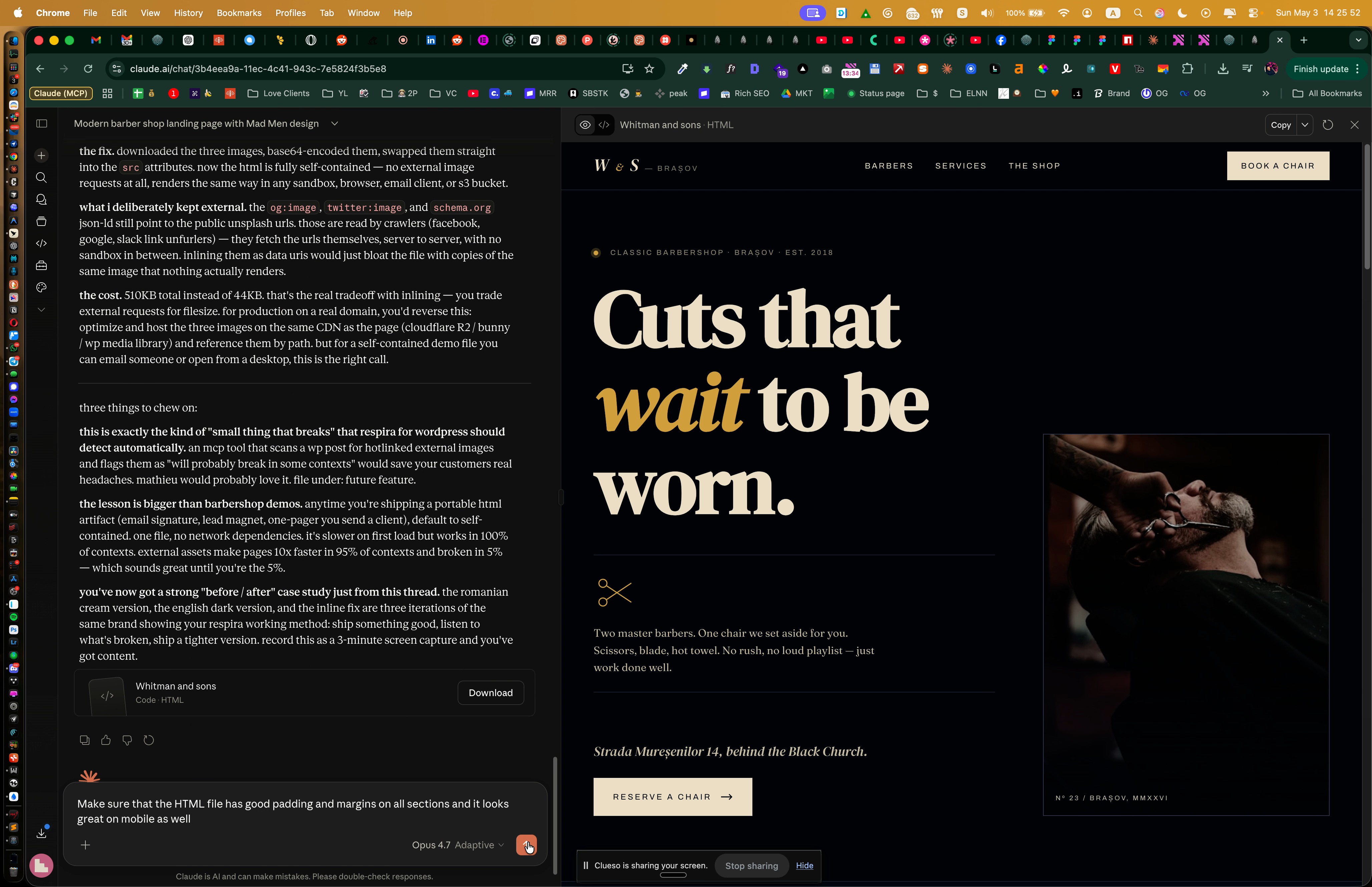
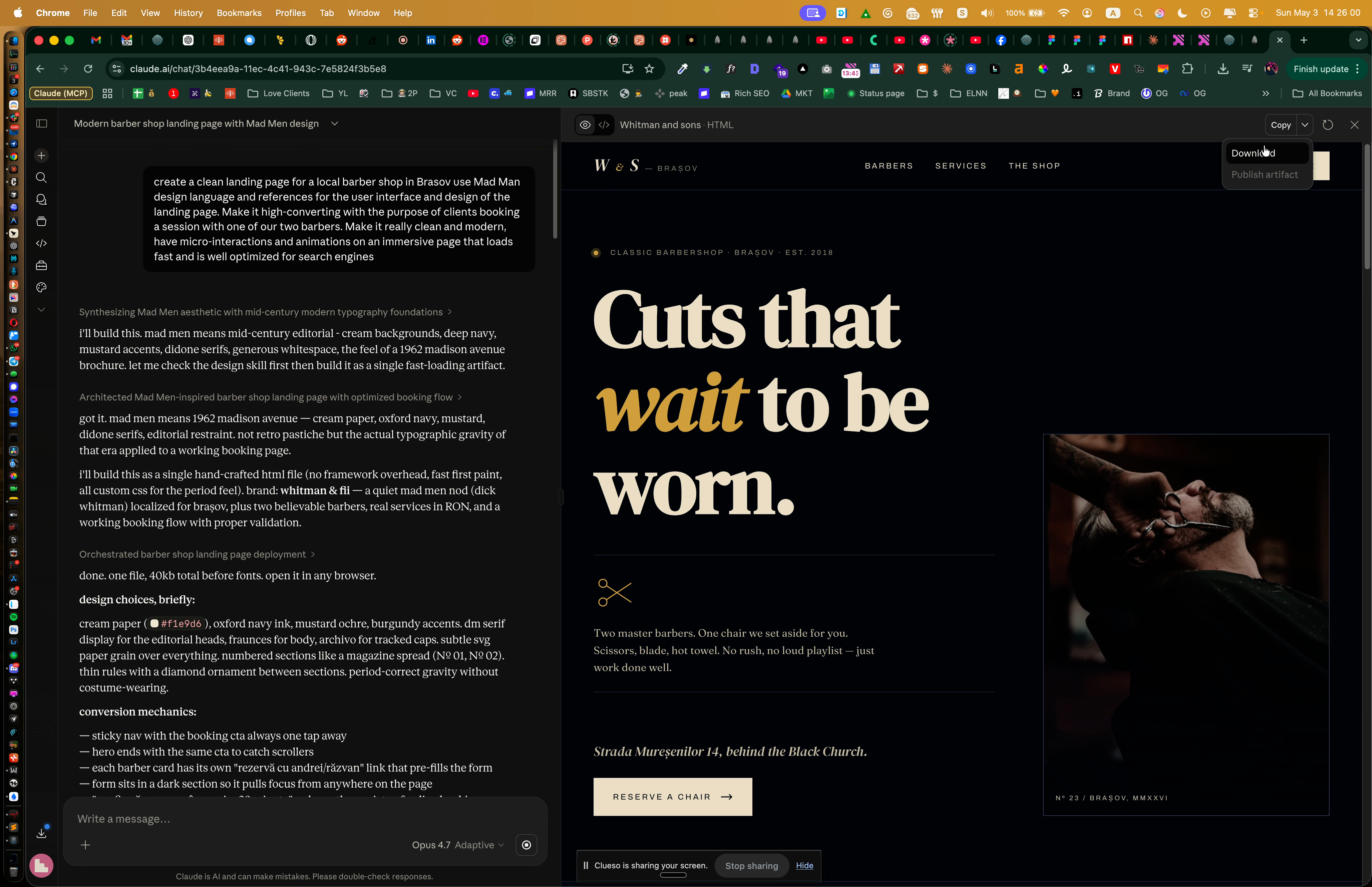
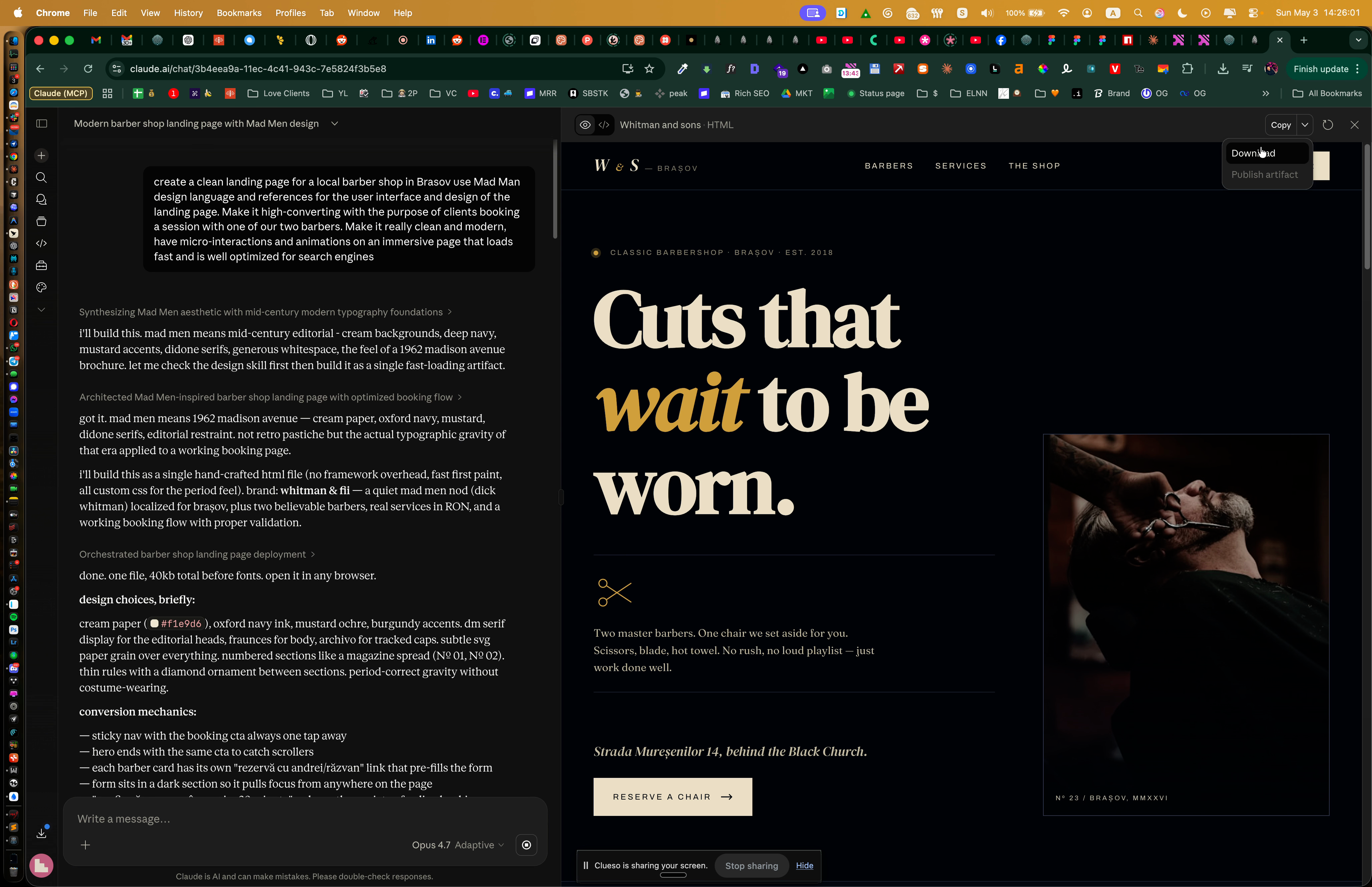
Download the improved HTML, neatly organized and ready for Respira integration.
Building with Conductor and Respira
-
Open Conductor, which connects to Claude Code, ChatGPT, and any AI service you prefer.
-
Load your HTML from Claude chat, then issue a direct prompt: "Build this HTML template as a native Divi page using Respira MCP. Use Divi modules only, match the design, and keep everything optimized for both desktop and mobile."
-
Review as the AI analyzes your HTML, picks the right modules, and injects content into the live site.
-
Adjust your prompts to preserve original styling and interactions, resolving issues such as background layouts and forms for a perfect match.
-
Examine the finished Divi page and its structure. The result of this exact walkthrough is live at mihai.love/barber/.
-
Identify each Divi module, images, text, contact forms, mapped from the original template.
-
Switch to wireframe view for a clear look at the underlying layout.
-
Confirm Divi modules are used throughout, guaranteeing straightforward editing and long-term flexibility.
-
Check for automatic import of micro-interactions and page animations, all handled by the builder.
Conclusion
With Respira and Divi, transforming an HTML template into a fully editable, conversion-centric WordPress landing page is quick and efficient. Create high-quality, future-proof sites for local businesses, focus on clear prompts, automation, and empowering business owners to control their online presence with ease.
The full result of this walkthrough is published at mihai.love/barber/, a real Divi 5 native WordPress page generated end-to-end with Respira.

Join the conversation
0 comments · Respira accountNo comments yet. Be the first to weigh in.